Create and manage clusters
Create a Spark cluster in Studio, connect to it from a dev environment, change its size, and delete it.
A Spark cluster is a set of nodes, one master and one or more workers, that stays running so you can connect to it from your dev environment. You create and manage clusters under Compute > Clusters in Studio. This guide shows how to create a cluster, connect to it, change its size, start it again, and delete it.
Before you start
You need the Spark Operator or Spark Admin role and editor access to a profile. See Before you start.
Studio uses your own profile automatically, or the first profile of the active tenant that you can use. There's no profile picker.
Open the clusters page
The clusters page lists every Spark cluster in your profile.
- Open Studio from the workspace switcher.
- In the sidebar, under Compute, select Clusters.
Each cluster appears as a card with its name, status, number of workers, whether its main node (Master) is ready, and who created it. While a cluster is starting or changing size, the page refreshes itself every few seconds. Select Refresh to reload it at any time.
| Status | Meaning |
|---|---|
| Provisioning | The cluster is starting. |
| Running | The cluster is ready to use. |
| Scheduling failed | The platform couldn't find room for the workers. Try fewer or smaller workers. |
| Failed | The cluster stopped because of an error. |
| Released | The cluster's nodes have been released. |
| Stopped | The cluster stayed idle for its idle timeout and was stopped. Start it to use it again. |
Create a cluster
Create a cluster when you want Spark capacity that stays available while you work in a dev environment.
- On the Clusters page, select Create cluster.
- In Cluster name, enter a name. Use lowercase letters, numbers, and
hyphens, start with a letter, and use at most 45 characters. For example,
sales-analysis. - Set the size of the cluster:
- Worker count: how many workers to start, from 1 to 50. The default is 2.
- Worker CPU: CPU cores per worker, from 1 to 64. The default is 1.
- Worker memory: memory per worker, such as
512mor4g. The default is2g.
- In Idle timeout, set how long the cluster may stay idle before the
platform stops it, for example
30m,8h, or7d. The default is1hand the maximum is365d. - Select Create.
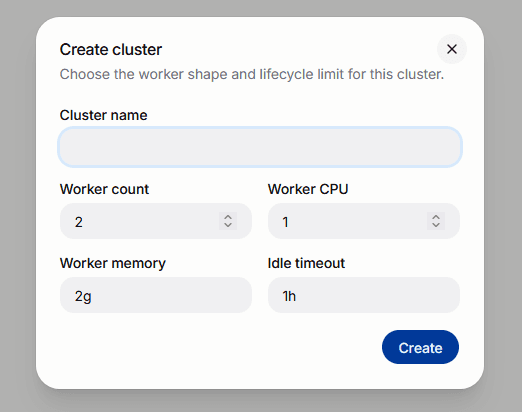
The new cluster appears with the status Provisioning and changes to Running when it's ready.
A cluster is idle when no work is running on it and no session is connected to it. When it has been idle for the whole Idle timeout, the platform stops it and releases its nodes. The cluster stays in the list with its settings, and you can start it again. Any activity starts the idle period again, so a cluster that's in use keeps running.
A larger cluster finishes work faster but uses more of your personal limits.
Connect to a cluster from a dev environment
The cluster page gives you the code that connects a dev environment to the cluster.
- On the Clusters page, select the cluster.
- In the Attach from a notebook card, select Copy notebook code.
- Select Open Workspace to open Developer Workspace in a new tab, and open a dev environment.
- Paste the code into the dev environment and run it.
The code looks like this:
from bsqai.spark import get_spark_session

spark = get_spark_session(cluster="sales-analysis")
When the code finishes, spark is ready to use. Continue with
Use Spark in Dev environments.
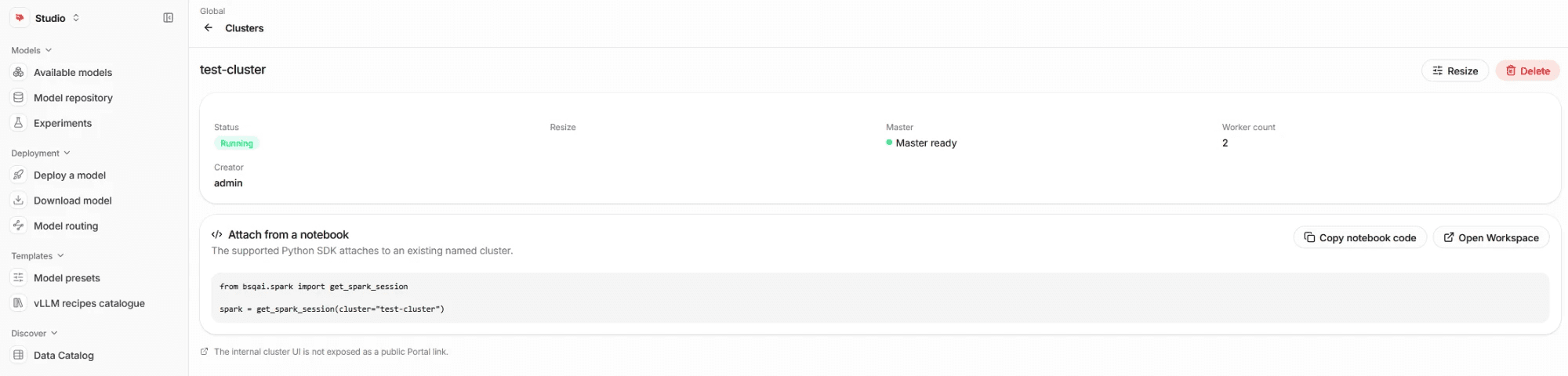
The cluster runs as your personal Spark identity, so your sessions read and write tables with your own permissions. See What your Spark work can access.
The Spark cluster's own web interface isn't available through the Portal.
Change the size of a cluster
You can change a cluster's workers and idle timeout without recreating it.
- Open the cluster and select Edit cluster.
- Change Worker count, Worker CPU, Worker memory, or Idle timeout.
- Select Save.
- If you changed the workers, CPU, or memory, confirm with Continue editing.
Changing the workers, CPU, or memory restarts the cluster's workers, which can end jobs that are running on it. Changing only Idle timeout doesn't restart anything; the new value applies to the current idle period.
While the change is in progress, the cluster shows Pending resize or Resizing. When it finishes, a Resize complete or Resize failed message appears.
Start a stopped cluster
The platform stops a cluster that stayed idle for its Idle timeout. A stopped cluster shows Stopped, releases its nodes, and keeps its settings.
- On the Clusters page, select the stopped cluster.
- Select Start.
The cluster shows Provisioning and then Running when it's ready. Connect to it again from your dev environment.
Delete a cluster
Delete a cluster when you no longer need it, so it stops counting toward your limits.
- Open the cluster and select Delete.
- Confirm with Delete.
Deleting a cluster is permanent and ends every session connected to it.
Who can change a cluster
Only the person who created a cluster can edit or delete it. People with the Spark Admin role can edit and delete every cluster in the tenant.
If you're missing a permission, the button stays visible but greyed out. Point to it to see which permission you need.