Run a PySpark job
Run a Python file once on Spark from Studio, follow its output, and run it again.
A PySpark job runs one Python file once. The platform starts a driver and executors for the job, runs your file, and removes them when it finishes. You don't need a cluster or a dev environment. This guide shows how to run a job from Compute > Jobs in Studio, read its output, and run it again.
Before you start
You need the following:
- The Spark Operator or Spark Admin role and editor access to a profile. See Before you start.
- A PySpark file (
.py) of at most 256 KB, on your computer or saved in your Platform files, for example by Chat.
A minimal PySpark file looks like this:
from pyspark.sql import SparkSession

spark = SparkSession.builder.getOrCreate()
orders = spark.createDataFrame(
    [("north", 120.0), ("south", 80.0), ("north", 45.5)],
    ["region", "amount"],
)
orders.groupBy("region").sum("amount").show()
spark.stop()
Run a job
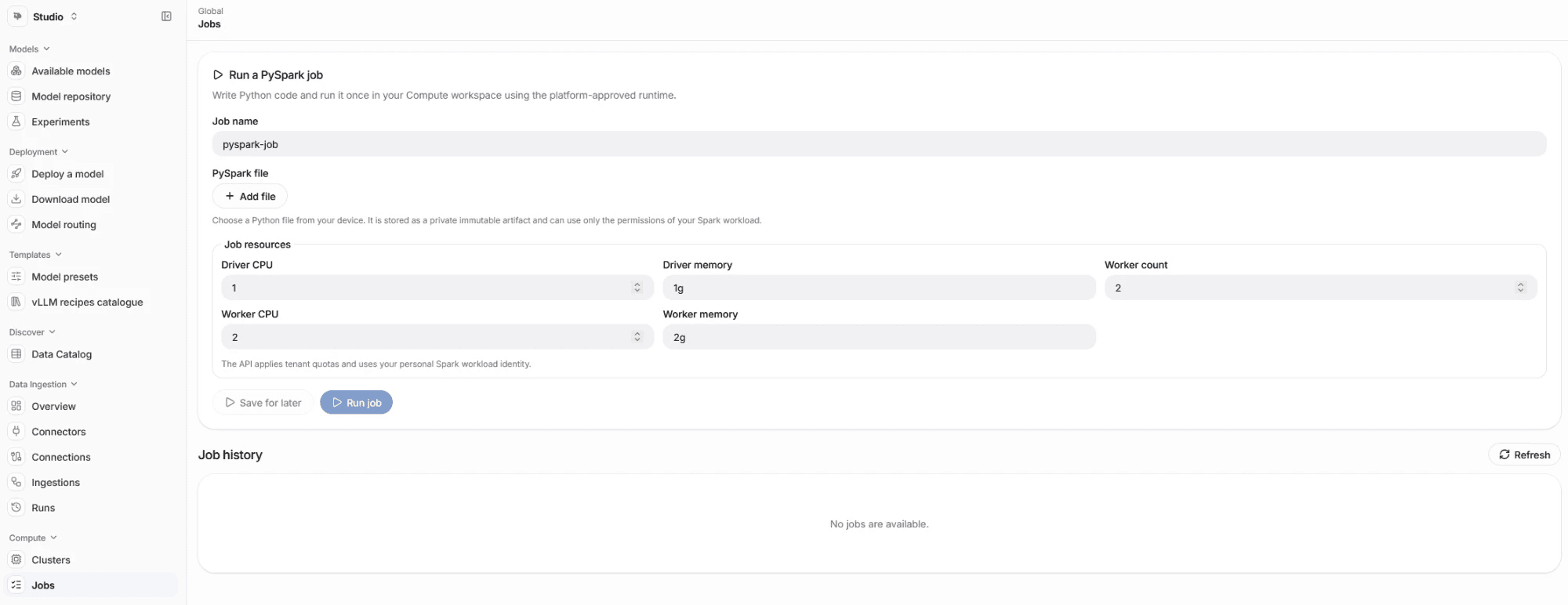
Fill in the Run a PySpark job form to start a job.
-
Open Studio and, under Compute, select Jobs.
-
In Job name, enter a name, for example
orders-by-region. -
Under PySpark file, select Add file, then choose one of these options:
- From this computer: select Choose file and pick a
.pyfile. - From Platform files: choose a ready
.pyfile from the list. This option needs permission to list and download files in your file library.
- From this computer: select Choose file and pick a
-
Optional: select Show code to check that you picked the right file.
-
Optional: under Job resources, change the computing power for the job.
Field What it controls Default Driver CPU CPU cores of the driver, which runs your file and coordinates the work (1 to 16) 1 Driver memory Memory of the driver 1gWorker count Number of executors that process the data (1 to 50) 2 Worker CPU CPU cores per executor (1 to 64) 2 Worker memory Memory per executor 2g -
Select Run job.
The job's output panel opens below the form and updates every few seconds until the job ends.
To prepare a job without starting it, select Save for later instead of Run job. The job appears in Job history, and you start it later with Run again.
The file you upload is stored privately and can't be changed afterwards. The job runs with your personal Spark identity, so it can reach only the data that you can reach. See What your Spark work can access.
Follow a job and read its output
The output panel and Job history show how your job is doing.
| Status | Meaning |
|---|---|
PENDING | The platform is starting the job's driver and executors. |
RUNNING | Your file is running. |
SUCCEEDED | Your file finished without errors. |
FAILED | Your file stopped with an error, or the driver or executors couldn't start. |
The output shows everything your program printed, such as the result of
show() or print(). Spark's own technical messages are left out. If the job
fails, the error from your program appears in the output. Very long output is
cut off after 1 MB.
Use job history
Job history lists your jobs with their status and creation time. People with the Spark Admin role see the jobs of everyone in the profile. Select Refresh to reload the list.
On each job, you can:
- Select Show logs to read the job's output.
- Select Show code to see the file the job ran.
- Select Run again to start the same file with the same resources as a new job. The new job gets a new name based on the original one.
Jobs stay in Job history after they finish, together with their code and output.
Jobs can't be stopped from Studio
You can't stop or delete a job from Studio. To limit how long a job uses resources, keep the work in your file bounded.