Configure GitHub Copilot in VS Code
Connect GitHub Copilot to a BullSequana AI model and verify file tool calls.
Use GitHub Copilot's Bring Your Own Key (BYOK) support to connect VS Code to a model through the BSQAI API.
Prepare the connection
Before you add the model, prepare the following:
- VS Code 1.142 or later, with GitHub Copilot Chat enabled. The screenshots use VS Code 1.143.1.
- Your deployment's HTTPS API URL, such as
https://api.<platform-domain>/v1/responses. - A BSQAI API key with
chat.message.create. Includetenant.readif you use the key to list models. - A model name from
/v1/modelsthat your key's owner can invoke. Choose a model with tool calling enabled. - The model's input and output token limits, supplied by your platform operator.
For a new key, follow Create and use an API key.
If the model is absent from /v1/models, ask your Tenant Administrator to grant model access.
VS Code supports BYOK without a GitHub account or Copilot plan. For an organization-managed setup, confirm that your administrator permits custom endpoints before you continue.
Add the Custom Endpoint provider
Add the provider through the VS Code prompts:
-
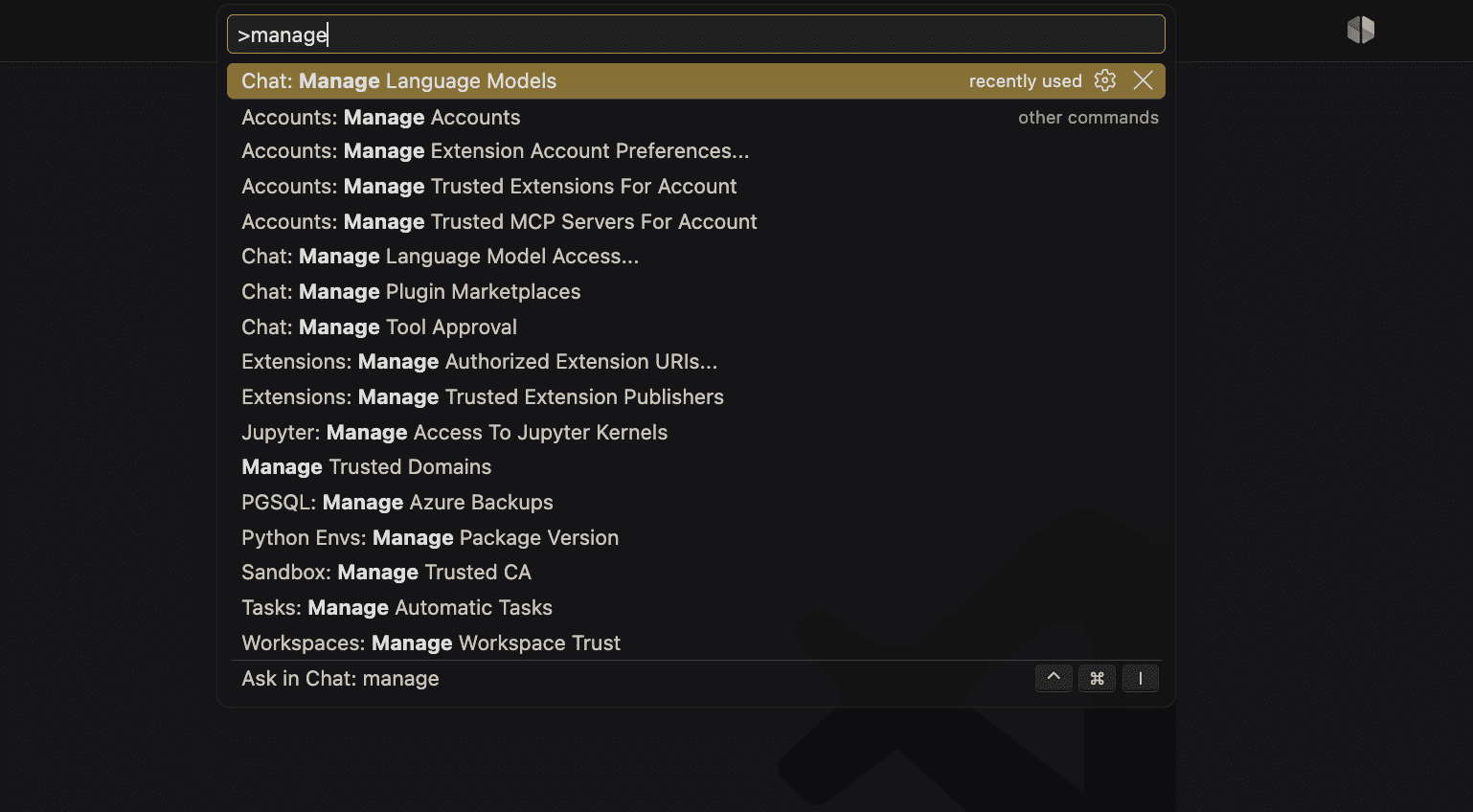
Open the Command Palette and run Chat: Manage Language Models.
-
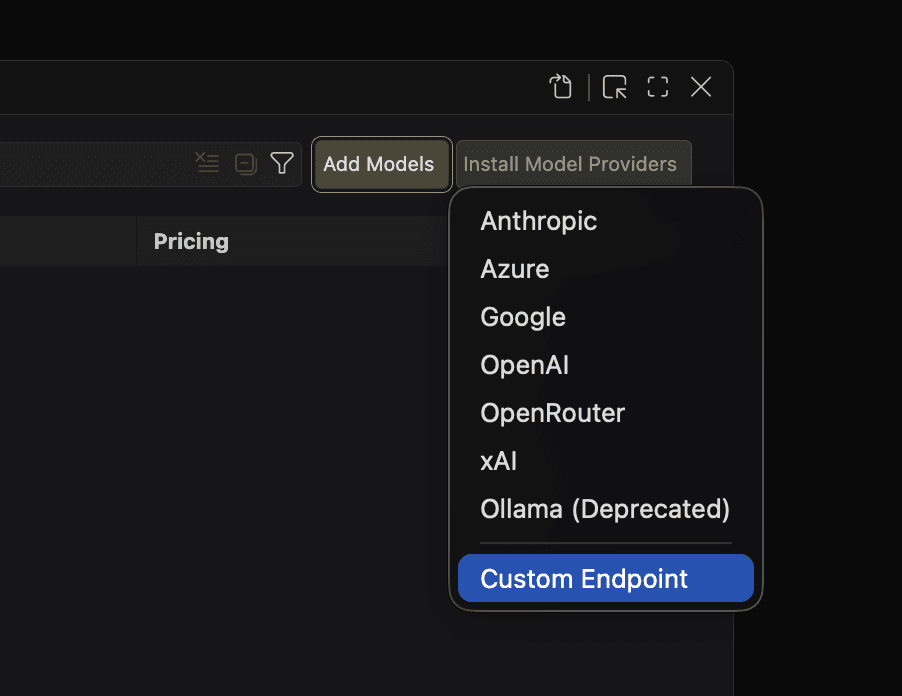
Select Add Models, then Custom Endpoint.
-
In Group Name, enter
BullSequana AIand press Enter.
-
Enter your BSQAI API key in the masked API Key prompt and press Enter.

-
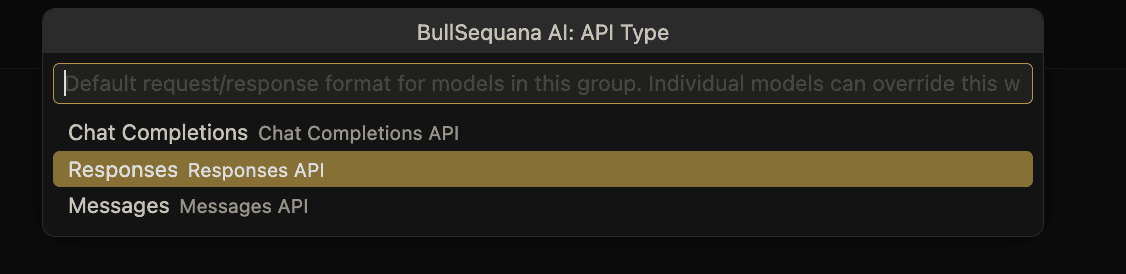
Select Responses as the API type.
-
In the
chatLanguageModels.jsonfile that VS Code opens, keep the generated provider entry and itsapiKeyline.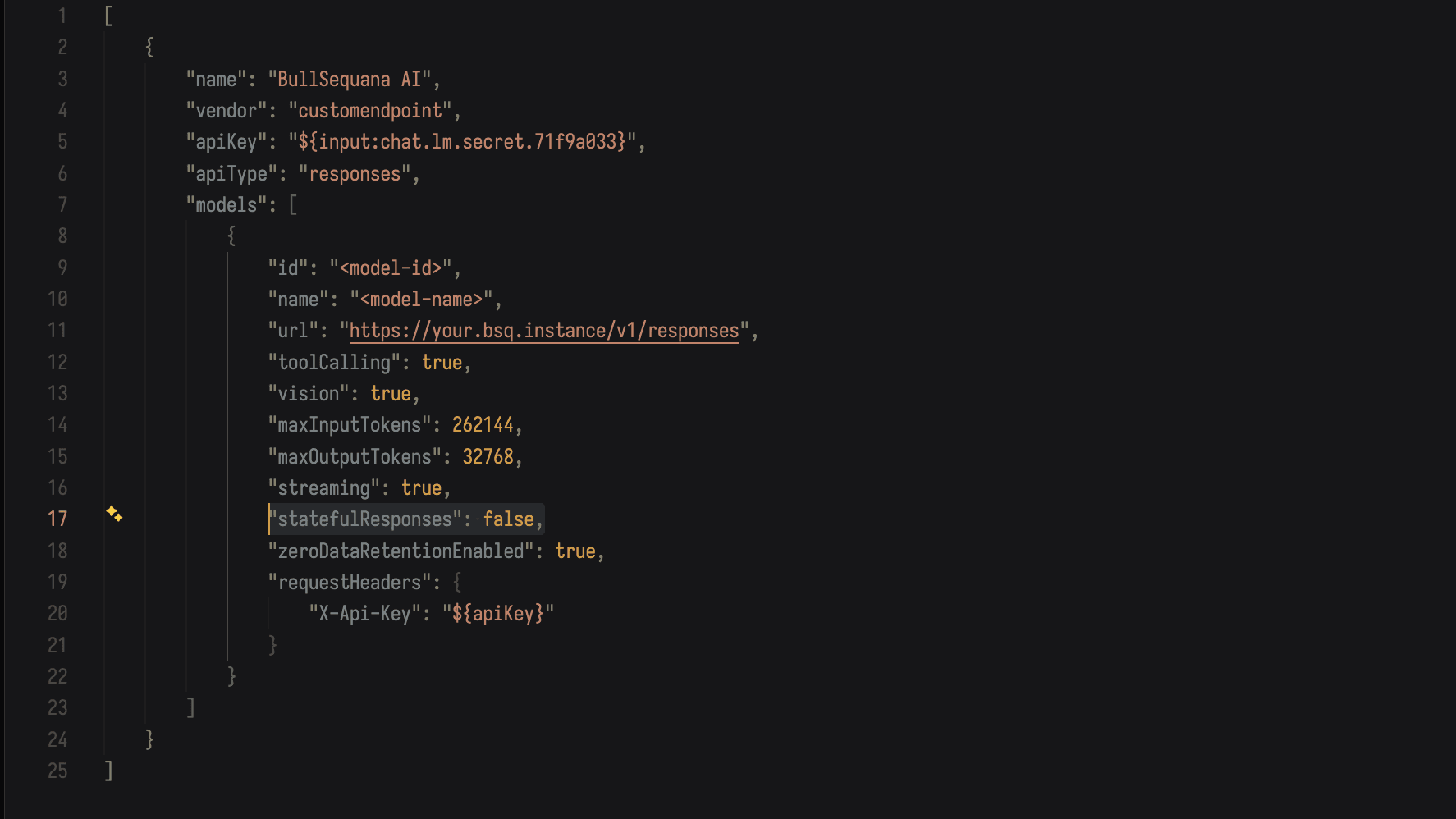
The configuration screenshot uses example token limits and enables image input.
Use your deployed model's limits and capabilities instead of copying those values.
The generated apiKey reference belongs to your VS Code profile. Do not copy the screenshot's reference.
Configure stateless Responses requests
In your provider entry, keep apiType set to "responses".
Inside models, set the following fields in each BullSequana AI model entry.
This fragment belongs inside a model entry, not in place of the complete configuration file.
{
	"id": "<model-name-from-/v1/models>",
	"url": "https://api.<platform-domain>/v1/responses",
	"toolCalling": true,
	"streaming": true,
	"statefulResponses": false,
	"zeroDataRetentionEnabled": true,
	"requestHeaders": {
		"X-Api-Key": "${apiKey}"
	}
}
Before you save, complete the model entry:
- Replace
idwith the model name from/v1/models. - Replace
urlwith your deployment's full/v1/responsesURL. Keepurlat model level, not at provider level. - Set
nameto the label you want in the model picker. - Set
maxInputTokensandmaxOutputTokensto your deployed model's limits. - Set
visiontotrueonly if the model accepts image input. Otherwise, set it tofalse. - If the model entry has an
apiTypeoverride, remove it or set it to"responses". - Save
chatLanguageModels.json.
Keep ${apiKey} unchanged in requestHeaders. VS Code substitutes the key from its secret storage.
Do not put the key itself in the JSON file or a shared workspace.
Keep both statefulResponses: false and zeroDataRetentionEnabled: true.
Copilot then resends the conversation with store: false, without previous_response_id.
The BSQAI API does not restore earlier turns from previous_response_id, so Copilot must resend the conversation.
These settings do not disable platform logs, usage records, or Copilot's local chat history.
Verify a file tool call
Use a folder with no private files for the check:
-
Create a folder containing one file named
fixture.txtwith this content:BSQAI_COPILOT_FILE_OK -
Open that folder in VS Code.
-
Start a new Copilot chat in Agent mode.
-
Select your BullSequana AI model from the model picker.
-
Send this prompt:
Read fixture.txt with a file tool and quote its contents. Do not modify any files.
If VS Code asks for permission, approve only the file read.
The chat must show a file-read tool action and an answer containing BSQAI_COPILOT_FILE_OK.
An answer without a visible tool action does not verify the tool call.
In the same chat, send a second prompt:
Read fixture.txt again with a file tool and tell me whether its contents changed. Do not modify any files.
Require a second file-read action and a completed answer without user_message_missing.
After any configuration change, start a new chat instead of reusing a conversation that began in stateful mode.
Resolve setup failures
Restore an unavailable model
If the model does not appear, run Developer: Reload Window and select the model again.
If Copilot reports that it cannot obtain a Copilot token, use a Copilot-enabled account. For an organization-managed account, ask your administrator to check the BYOK policy. For a personal setup not subject to organization policy, sign out of GitHub through VS Code's Accounts menu. Then reload the window and start a new chat.
For a personal account, signing out restores provider registration in VS Code 1.143.1 when the account cannot obtain a Copilot token. The API connection still needs the file-read check. Do not sign out to work around an organization's BYOK policy.
Fix a tool-result continuation error
If a tool-result continuation fails with user_message_missing, check both stateless settings in the selected model entry.
Set statefulResponses to false and zeroDataRetentionEnabled to true.
Save the file.
Start a new chat before you repeat the file-read check.
Report an invalid tool definition
If invalid_tool_definition names tools[N].name, ask your platform operator to check the deployed API's tool-name limit.
Some VS Code extensions generate long tool names.
Report the VS Code version, the tool name, the error code, and param.
Do not send your API key or a workspace transcript.
Check an empty reply
If the reply is empty, check that the selected model uses apiType: "responses" and streaming: true.
Then start a new chat and repeat the file-read check.