AI Hub
Portal workspace for the model repository, deployments, downloads, vLLM recipes, experiments, and model presets.
The AI Hub is the Portal workspace for managing models. It covers the models exposed in the environment, the models registered in the platform repository, deployment into inference, imports from Hugging Face, the vLLM recipe catalogue, MLflow experiments, and model presets.
Open it from the workspace switcher at the bottom of the sidebar, beside Chat & Work and Administration. The workspace is available to signed-in users. Each list, resource, and action has its own permission check; opening AI Hub does not grant model-management access.
Workspace layout
The AI Hub sidebar has seven entries.
| Entry | Contents |
|---|---|
| Available models | Models already exposed for inference through the platform. |
| Model repository | Models registered in MLflow, their versions, and the model page. |
| Deployment | Guided and advanced deployment of a model into inference. |
| Downloads | Imports of Hugging Face models into the platform repository. |
| vLLM recipes | The recipe catalogue this installation holds, and its refresh, export, and import actions. |
| Experiments | MLflow experiments, their runs, parameters, metrics, and artifacts. |
| Model presets | Tenant-scoped deployment templates used by guided setup. |
Bookmarks to the former Chat & Work model and model-preset pages redirect to their AI Hub locations.
Available models
The Available models list is the quickest way to inspect what model capacity is available in the current environment.
Each model shows a vendor logo when the provider is recognized, an on-premises or cloud badge, and a readiness status indicator.
From here, users can:
- browse the currently exposed models
- search by name, provider, feature, or tag
- filter between
on-premisesandcloudmodels - start a deployment flow from the
Deploy Modelaction
Selecting a model opens its detail page, which shows basic information, token limits, capabilities, tags, and the OpenAI-compatible parameters the model accepts. For on-premises models the detail page also has a Logs tab and a delete action.
The detail page also has a Use model tab, with the same two sections described under Use model below. Because the gateway publishes this model's capabilities, that tab states whether tool calling is supported and fills the agent configurations with the model's own context length.
Model repository
The Model repository is the MLflow-backed registry view. It lists registered models with their latest version and status, and it is the path to take when a model is already present in MLflow and the next step is to serve it.
Create and maintain registry entries
Select Create model in Model repository to create a named registry entry. Versions associate that entry with model artifacts; creating the entry alone does not create weights or an inference deployment.
On a model page, use Edit to change the description, permitted tags, or model name, and save the changed fields. The selected version shows its description, status, stage, and source as read-only information; its tags and aliases can be edited with their respective permissions. An alias such as champion points to one version at a time; assigning it to another version moves the alias. Alias changes require mlflow.model.promote, independently of ordinary metadata updates.
Renaming a registered model changes the name used by clients loading it. The Portal blocks registry rename and deletion while deployments exist or deployment status cannot be checked. Resolve those deployments or the status-read problem first. Registry deletion removes the model and its versions without a restore action; it is distinct from the Model Installer deletion action that can also remove downloaded artifacts.
Keys beginning with mlflow., bsqai., or _mlflow_ are read-only system tags. The installer-owned hf_model_id is also protected. Model and version tag keys cannot contain /. See Edit metadata safely for saving and navigation behavior.
Model page
Selecting a registered model opens one page that covers it end to end. The header shows the model identity, the status of its latest version, how many deployments back it, and, when the Hugging Face integration is available, metadata badges such as pipeline tag, library, license, parameter count, architecture, tensor types, and whether the repository is gated.
Header actions:
| Action | Behavior |
|---|---|
| Deploy Model | Opens the Deploy tab. Requires platform.global_service.manage. |
| Delete Model | Removes the registry entry and, optionally, its stored artifacts. Requires platform.global_service.manage. |
| Open on Hugging Face | Opens the model's page on Hugging Face. The Portal names the destination host and full address in a confirmation dialog before opening a tab. Shown only when the Hugging Face integration answered for this model. |
| Open in MLflow | Opens the model in the MLflow UI. Shown when the installation exposes an MLflow UI address. |
The page opens on Overview. Two tabs are conditional: Use model appears once at least one deployment serves the model, and Hugging Face card appears when the Hugging Face integration is available.
Overview
Registered versions, the model description, basic registry information, and registry tags. When the selected version was produced by an MLflow run, the tab also shows that run's experiment and artifact location with links to open the run or the experiment. A version registered without a backing run states that instead.
Use model
Two ways of consuming the model, in that order: writing the request yourself, and pointing a coding agent at it.
Use with the API covers the first, in three steps:
- Create an API key. Keys are sent as a bearer token and shown once, at creation. Creating one requires
credential.api_key.create. - Pick the model id. The value to pass as
model, read from the deployments that serve this model. When several deployments back the same model, a selector chooses between them, and the tab states whether the deployment is ready. - Call the model. The available endpoint tabs follow the model's published mode: generation, embeddings, or rerank. Examples use
curl, Python, TypeScript, and the Anthropic SDK where applicable. Generation examples use the OpenAI Responses API. Embeddings return the OpenAI-compatible indexeddata[]shape; rerank uses its own response contract. See the developer API examples for request and response details. Adding"stream": trueto a chat request returns server-sent events.
Use with a coding agent covers the second. Pick an agent and the section shows three blocks, prefilled with this model's id and this environment's base URL: the install command, the configuration with the path of the file it belongs in, and the command to run. Every configuration reads the key from the BSQ_API_KEY variable the step above exports, so no key is written into a file.
The agents listed are the ones whose wire format this API serves: OpenCode, Codex CLI, Pi, Hermes Agent and Flue on the OpenAI Responses API, and Claude Code on the Anthropic-compatible mount. Claude Code accepts only model ids that start with claude-, so the section shows the prefixed id for it.
This half of the tab is for models that generate text. An embedding or rerank model says so in place of the agent picker, because every configuration the section writes calls a generation endpoint, and its API examples open on Embeddings or Rerank rather than on Chat. A model whose mode the gateway does not publish keeps the agent picker.
A coding agent needs tool calling
An agent reads files and runs commands through tool calls. Deploy the model with tool calling enabled — for vLLM, --enable-auto-tool-choice and a --tool-call-parser matching the model family — or the agent can only answer. A deployment publishes no capability flag, so the tab states the requirement rather than checking it. On a model opened from Available models the gateway does publish it, and the tab shows whether tool calling is supported.
See Developer Tools for the per-agent guides.
Hugging Face card
The model card from Hugging Face with its metadata: author, model type, parameter count, downloads, likes, last modified date, commit, base model, and Hub tags. A gated repository states that its terms must be accepted, or a token configured, before the model can be downloaded. A model registered without a Hugging Face id falls back to the registry's own description.
Files and versions
Registered versions beside the files stored for the selected version. A model repository can be tens of gigabytes across many shards, so the file tree is browsed one directory at a time. When the Hugging Face integration is available, the tab also lists the files present on the Hub.
Deployments
The running instances backed by this model, with namespace, replica count, tensor-parallel size, creation date, and whether the deployment serves the weights from the repository or from Hugging Face. Pods and logs open in place, as does undeploying.
Deploy
The deployment form for this model. When the catalogue holds a vLLM recipe for the model, the form is prefilled from it — see Deploy from a vLLM recipe. Otherwise the plain form opens with the selected version's artifact location as the source. A failed or unavailable recipe lookup does not block manual configuration or repeatedly reset your runtime selection. If the artifact lookup itself fails, use its Retry action or supply a valid source for a URL-based runtime; the predictive path can resolve its registered model version separately.
Deployment
The Deployment entry is the guided path for making a model available for inference. It offers Easy setup, Advanced setup, and configuration upload, and submits to the Model Installer through the BSQAI API.
Easy setup
Easy setup has two sources.
- Presets — the curated catalogue of tenant model presets. A preset prefills engine, resource profile, features, limits, and tags, and the form stays in a simple one-step flow until Customize Deployment is selected.
- vLLM recipes — the recipe catalogue, searchable by model id, title, or provider. Selecting a recipe opens the same recipe panel described below. When the catalogue is switched off for the installation, the tab states that instead of listing recipes.
Advanced setup
Advanced setup is closer to the raw deployment contract.
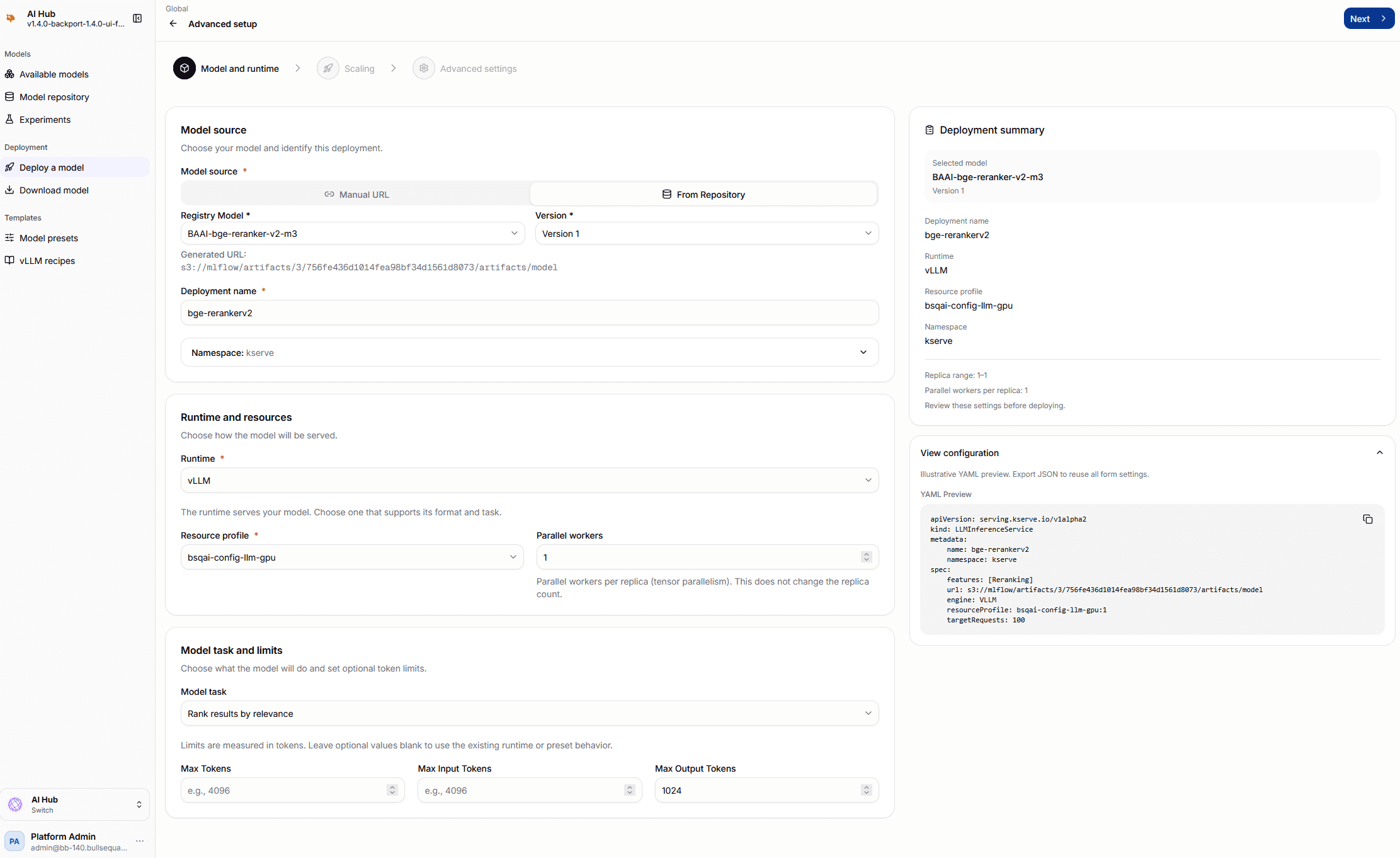
It exposes a fuller deployment form with:
- model source URL or repository-backed source
- deployment name and namespace
- model mode and features
- resource profile and instance count
- scaling and timeout settings
- environment variables and extra arguments
- a YAML preview of the resulting KServe
LLMInferenceServicedeployment request
Deploy a predictive model
For a predictive runtime, select a registered MLflow model and a specific version instead of a Hugging Face URL. The selected runtime must support that version's MLflow flavor; the MLflow python_function path uses an MLServer-compatible runtime. Use a resource profile allowed for the tenant and inspect the resulting deployment status and logs.
Registration, deployment, and consumption are separate steps. A ready registry version is not a running service, and a ready workload does not by itself create a public prediction endpoint. Use the inference route and request schema exposed for the selected runtime; do not send a predictive payload to the text-generation Responses API.
Deploy from a vLLM recipe
A vLLM recipe is a published, verified configuration for serving one model with vLLM. The recipe panel shows the recipe title and description, its provider, difficulty, context length, minimum vLLM version, and verified hardware, and a View recipe link to the upstream catalogue entry. Opening that link is confirmed first, in the same dialog used for other external destinations.
A recipe names the upstream image it was verified with. The platform serves the model with the image from its own runtime profile.
Two choices sit above the form:
- Checkpoint — which set of weights to serve. Each option reads as its key, precision, and minimum VRAM. The recipe's recommended checkpoint is listed first, marked, and selected.
- Capabilities — the optional behaviors the recipe defines, such as reasoning, extended context, or tool calling. Switching one off removes the vLLM flags it names.
Changing the checkpoint or its capabilities re-applies the recipe to the form below and discards edits made there.
When the selected checkpoint's weights are not in the model repository, the panel states that deploying fetches them from Hugging Face at start-up, and offers Download weights, which opens Downloads with the Hugging Face id already filled in. Deploying directly from Hugging Face remains available and requires the cluster to reach the Hub.
Below the choices, the standard deployment form is prefilled from the recipe. The model source and engine are fixed; every other value stays editable.
Load a recipe into a form
The deployment form looks up whichever model is entered. When the Model URL is a Hugging Face id the catalogue covers — typed directly, or selected through From Repository, where the Hub id comes from the registry entry — the form offers to prefill itself from that model's recipe.
Loading a recipe fills the runtime arguments, environment variables, features, instance count, token limits, model mode, tags, and resource profile from the checkpoint that matches the model. The model URL, deployment name, and namespace stay as they were set, and every filled value remains editable. When the recipe names no checkpoint matching the model exactly, the offer says so and loads the recommended checkpoint instead.
Token limits
The deployment form accepts values from 1 to 10,000,000 for Max Tokens, Max Input Tokens, and Max Output Tokens, which covers models with context windows in the millions. Model presets accept up to 1,000,000, the limit the BSQAI API enforces on a preset.
Downloads
The Downloads entry imports Hugging Face models into the platform repository. It collects the Hugging Face model name, the revision, the target MLflow experiment name, and the artifact path, which defaults to model.
An import starts through the Model Installer, then the Portal polls the download status and MLflow until the model is READY, surfacing failures as they occur. Active downloads show a live status indicator, and reopening the page while one is running restores its status.
An import registers the model in MLflow. It does not deploy the model for inference. After the model is ready, continue from the model page's Deploy tab, or from Advanced setup with the artifact prefilled.
The Download weights action in the recipe panel opens this page with the model already filled in.
vLLM recipes
The vLLM recipes entry shows the recipe catalogue this installation holds. Recipes are stored by the BSQAI API and read locally, so the catalogue answers without reaching an upstream site.
The status card reports how many models the catalogue covers, when it was last synced and whether that is current, stale, or empty, whether its contents came from the upstream catalogue or an imported snapshot, whether an upstream is configured, and which catalogue address is in use. Below it, the stored recipes are listed with a search box over model id, title, and provider.
Four actions are available to users with platform.global_service.manage:
| Action | Result |
|---|---|
| Refresh from upstream | Fetches the configured catalogue. The status card reports when the refresh finishes. |
| Download snapshot | Exports the whole catalogue as a file. |
| Import snapshot… | Replaces the whole catalogue with an exported file. The accepted file size is the limit the BSQAI API advertises. |
| Refresh from a mirror… | Reads the catalogue once from another address. |
Refresh from a mirror
A mirror is useful when an installation reaches an internal copy of the catalogue but not the public one. The dialog accepts an https address; the BSQAI API refuses an address that is not https or that resolves to a private network.
Reading from a mirror once needs platform.global_service.manage. The dialog's Remember this as the default for this tenant switch changes what every later refresh reads, which is a configuration change and needs tenant.update.
Air-gapped installations
An installation configured without upstream access fetches nothing. Its recipes are carried in as a file:
- On a connected installation, open vLLM recipes and select Refresh from upstream.
- Select Download snapshot and carry the file to the disconnected installation through the approved channel.
- On the disconnected installation, open vLLM recipes and select Import snapshot….
An import replaces the whole catalogue rather than merging into it.
When the catalogue is switched off for an installation, the recipe surfaces are absent: the page states that recipes are not in use, and deployments are configured by hand. The settings that control this are described in Model Installer API.
Experiments
The Experiments entry lists MLflow experiments, with a search box and an option to include deleted experiments.
Opening an experiment lists its runs with status, start and end time, duration, and how many parameters and metrics each recorded. Opening a run shows:
- Overview — parameters, the run's own metrics and tags, its description, the artifact location, and the registered models whose latest version came from this run
- Model metrics and System metrics — recorded values plotted over the run's steps
- Artifacts — the files the run stored
A run's description and tags are editable from this page. MLflow's own system tags are listed separately from the run's tags. Open in MLflow opens the run in the MLflow UI.
Data scientists working from a notebook can continue to use the MLflow UI directly; see Open the MLflow UI.
Create and manage experiments and runs
- Open Experiments, select Create experiment, and give the experiment a name.
- Open it and select Start a run. The new run starts in the running state and is attributed to you; it does not launch training code.
- Open the run to inspect parameters, metrics, and artifacts. Use Edit for its name, status, description, and writable tags, then save your changes. Set the status when the work finishes.
- To remove a run or experiment from active views, use its delete action and confirm. Include deleted entries to find it again and use Restore when needed. Restore the parent experiment before resuming work with its runs.
Experiment and run deletion is recoverable through their lifecycle controls. Registry model deletion is not. Resource access and action-specific permissions are checked separately, so permission to view a run does not imply permission to edit or delete it.
The governed BSQAI API also exposes MLflow prompt, trace, evaluation-dataset, logged-model, workspace, and webhook operations. Use the deployment's live API reference for request schemas and the MLflow permission family for operation gates. Workspace and webhook controls depend on the installation's MLflow configuration; Portal experiment browsing is not a substitute for every API operation.
Edit metadata safely
Experiment, run, and registry-model pages open read-only. Select Edit in the header to expose the fields you are allowed to change.
- Edit a name, description, run status, or tag, then use that field's save control.
- Wait for the successful result before moving to another field or page. If a write is refused, the form keeps its draft and displays the reason.
- Select Done when finished. Done is not Save: fields save independently, not as one transaction.
Save drafts before switching tabs, changing the selected model version, or following links. Closing or reloading the browser tab can show an unsaved-changes warning; ordinary navigation within the application does not.
Tags can be added, changed, and removed on experiments, runs, registered models, and model versions. Saving an existing key replaces its value. Reserved system tags remain read-only. Version aliases are separate: in edit mode, add an alias or remove one from its badge. Assigning an existing alias moves it from the version that previously held it.
Deleted experiments and runs do not offer metadata editing. Restore them first. Starting a run records a running MLflow entry, not a training execution; completing its status records its end time.
Model presets
Model presets are tenant-scoped reusable deployment templates stored by the BSQAI API. Open them from AI Hub → Model presets.
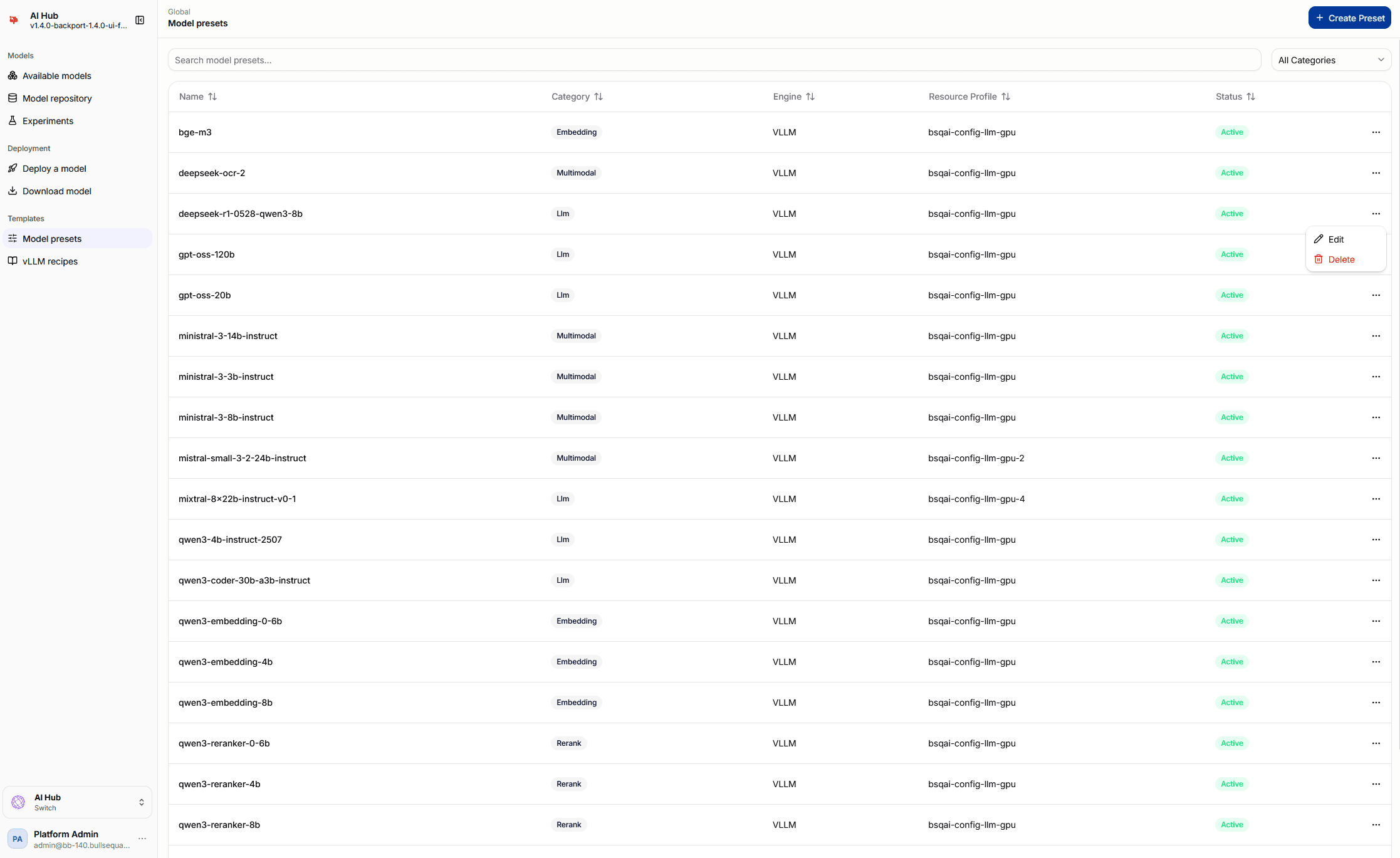
Active presets populate the Deployment → Easy setup → Presets catalogue and provide defaults for:
- model identity, category, engine, and mode
- features, tags, token limits, and vector dimensions
- resource profile and replica settings
- runtime arguments and environment variables
The management page supports search, category filters, creation, editing, and deletion. The form loads the active resource profiles for the selected tenant so its defaults stay aligned with deployable infrastructure options.
Changes to a preset affect future guided deployments. Advanced setup remains available when an AI engineer needs to override preset-driven defaults.
Permissions
| Action | Required permission |
|---|---|
| Open the AI Hub | Signed-in user; child pages and resources have separate checks |
| List/read experiments and runs | mlflow.experiment.list / mlflow.experiment.read, mlflow.run.list / mlflow.run.read |
| Create, update, delete or restore experiments/runs | The corresponding mlflow.experiment.* or mlflow.run.* permission; restore uses update |
| List/read/create/update/delete registry models | The corresponding mlflow.model.* permission |
| Change model-version aliases | mlflow.model.promote |
| Manage tenant presets | The corresponding tenant.model_preset.* permission |
| Deploy, delete, download, or undeploy a model | platform.global_service.manage |
| Refresh, export, or import the recipe catalogue | platform.global_service.manage |
| Store a mirror as the tenant's catalogue address | tenant.update |
| Create an API key from the model page | credential.api_key.create |
Practical mental model
- Available models — what is already exposed for use
- Model repository — what has been imported and versioned in MLflow
- Deployment — how a model becomes actively served
- Downloads — how weights get into the repository
- vLLM recipes — where the verified serving settings come from