Manage roles and permissions
Inspect system roles, define custom permission bundles, and assign them to tenant members and groups.
Use Administration → Access Control → Roles to inspect role definitions and manage tenant-owned custom roles. This guide covers administrative tasks; the roles and permissions catalogue owns the exact permission IDs and system-role bundles.
Before you begin
You must administer the selected tenant to use these Portal controls. Choose the intended organization in Tenant to manage. Opening Roles and reading the selectable permission catalogue require tenant.role.list.
| Action | Additional permission |
|---|---|
| Create a custom role | tenant.role.create |
| Edit a custom role | tenant.role.update |
| Delete a custom role | tenant.role.delete |
| Add a direct user or group assignment | tenant.role.assign |
| Remove a direct assignment | tenant.role.revoke |
| Choose members or groups from the directory | tenant.member.list or tenant.group.list, respectively |
Functional roles do not grant tenant-administrator status. Administrator assignments use separate tenant.admin.* controls, and platform-administrator authority has its own boundary.
Inspect a role
Search the Roles list and use the type filter to show all roles, system roles, or custom roles. Open a role to inspect its permissions and assignments.
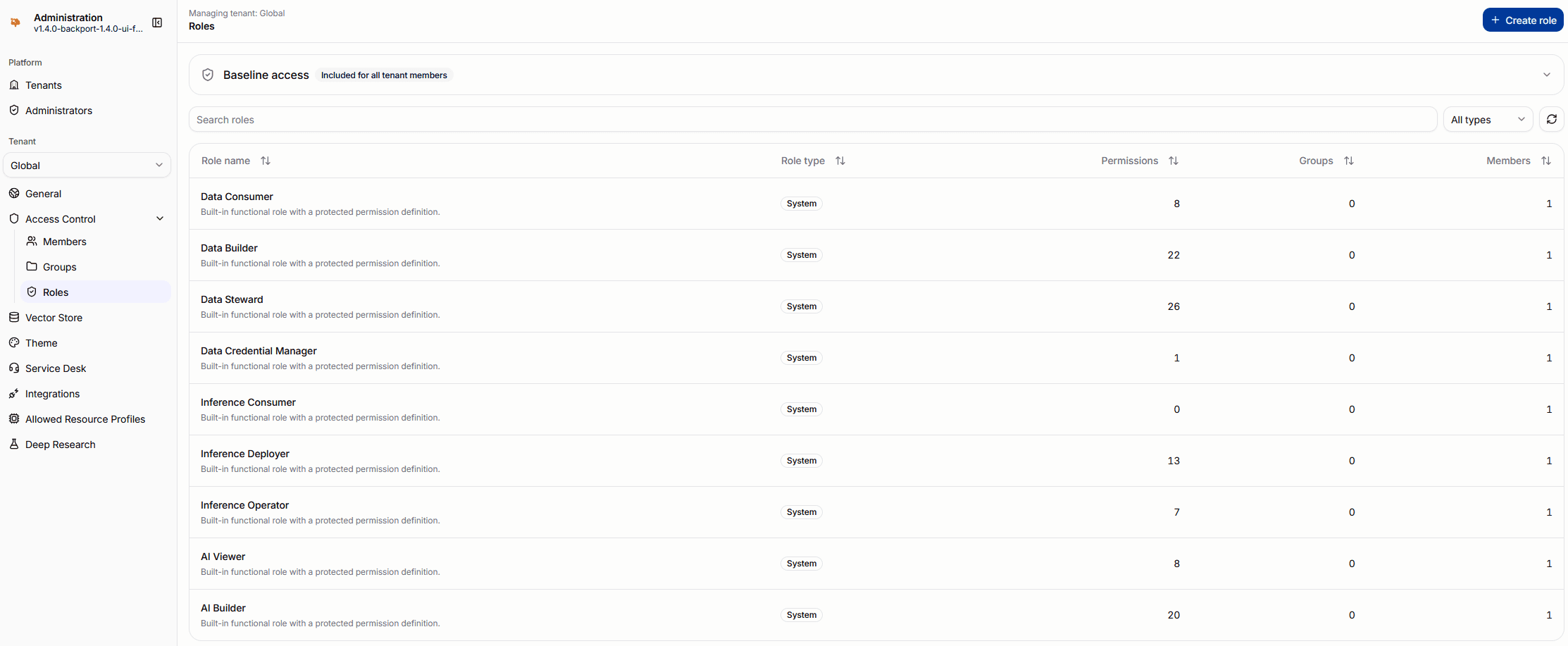
- System roles have fixed, read-only definitions. Eligible functional roles can be assigned, but their permission bundles cannot be edited. Their displayed permissions and counts show only additions above baseline, including inherited role permissions.
- Custom roles are tenant-owned permission bundles. They can be created, edited, assigned, or deleted; there is no enable/disable lifecycle.
Permissions are additive. Baseline membership, other roles, group inheritance, and resource access still apply. Removing a permission from one custom role does not deny access granted elsewhere. An empty custom role adds no permissions.
Inspect baseline access
The Roles area shows Baseline access, labeled Included for all tenant members, separately from assigned role contributions. Expand the card and search its read-only permission list when a member has access without an assigned role. Every tenant member receives these permissions automatically. Baseline access is not a role that can be assigned or revoked; some of its individual permissions are also selectable in custom roles.
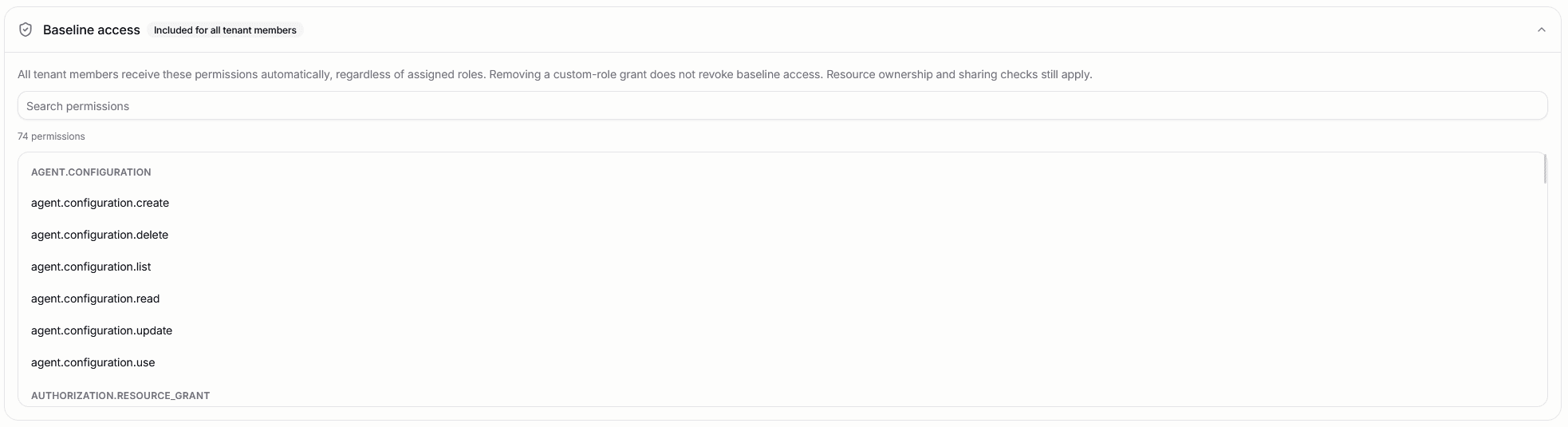
Removing a permission from a custom role, or leaving a role empty, does not remove baseline access. Resource ownership and sharing checks still apply: baseline permission to read a resource type is not permission to read every private resource.
Create a custom role
- Select Create role to open the full-page editor.
- Enter a name unique within the tenant, up to 120 characters, and an optional description.
- Search permissions or filter by permission family. Select the operations the role should grant.
- Use Only selected to review the selection. Select filtered and Clear filtered apply to the filtered permission set.
- Review permissions shown as granted by another selection. These are included automatically and cannot be unchecked independently; remove the granting selection if those permissions should no longer come from this role.
- Select Create role. Assign members or groups after the role is saved.
The editor uses the API's selectable permission catalogue. Protected permissions are not made assignable by creating a custom role.
Assign members and groups
Open a role's details and use Add users or Add groups to choose eligible tenant members or groups. Close the selector to submit its changes, then check the refreshed assignment list. Removing an assignment from this list removes only that direct grant.
You can also use Assigned roles in the Members or Groups details. Those controls save changes as you select or remove roles. To remove inherited access, inspect the source group or parent-group assignment rather than the member's direct-role list.
Edit a custom role
Open the custom role and select Edit role. Update its name, description, or permission selection, then select Save changes. Existing assignments are retained, so permission changes affect the assigned members and groups after synchronization.
If the role changed elsewhere while you were editing, close the editor and review the latest version before retrying. Do not treat a conflict as a successful save or overwrite another administrator's changes blindly.
Delete a custom role
Select Delete role from its details. Review the affected group and direct-user assignments shown in the confirmation, then confirm only when those grants should be removed.
Deletion is permanent. The role's grants are removed after synchronization; independent roles, inherited access, and baseline permissions remain. System definitions cannot be deleted through this flow.
Verify effective access
A saved role can report Configuration pending while its changes synchronize. Refresh to check progress, then verify the intended operations with an affected member. Even Configuration applied is not a substitute for checking effective access: group membership and permission synchronization may complete at different times.
For a reduction in access, also check other direct roles, group membership, inherited roles, and resource sharing. Test an operation that should succeed and one that should remain denied.