Voicebot
Have a live spoken conversation, interrupt replies, and continue in the same chat.
Voicebot lets you speak with a model or saved Agent in Chat & Work. Your speech becomes a chat message automatically when your turn ends, and the assistant answers aloud. The conversation also appears as text in chat.
Use Dictate a message instead when you want to review and edit a transcript before sending it. Use Read aloud on an existing assistant reply when you only want playback. These are separate controls from a live voice conversation.
Before you begin
You need:
- a signed-in Portal session in the intended tenant and permission to use chat
- an available chat model, or permission to use the selected Agent
- a microphone and a browser with microphone and audio support, using a secure connection
- working transcription and speech-generation services, with an installed voice for your language
The language list comes from the available speech voices, not the Portal's display-language setting. If it is empty, ask the platform operator to check the speech service and installed voices.
Start a conversation
- Open Chat & Work and choose New chat or an existing conversation.
- Select the model or Agent you want to speak with.
- Select the audio-wave button, Start a voice conversation, beside the composer. This is not the dictation microphone.
- On first use, choose Language. The connection starts when you select it. Later sessions reuse your last available language choice in that browser.
- Allow microphone access when the browser asks.
- Wait for Listening, then speak. Pause when you finish your turn.
- Follow Thinking and Speaking as the assistant prepares and speaks its reply. Check the transcript and reply in the conversation.
You do not press Send for each turn. If the final transcription is late, the service can answer using the last partial transcript. If the Portal warns that the ending may be missing, say the correction explicitly.
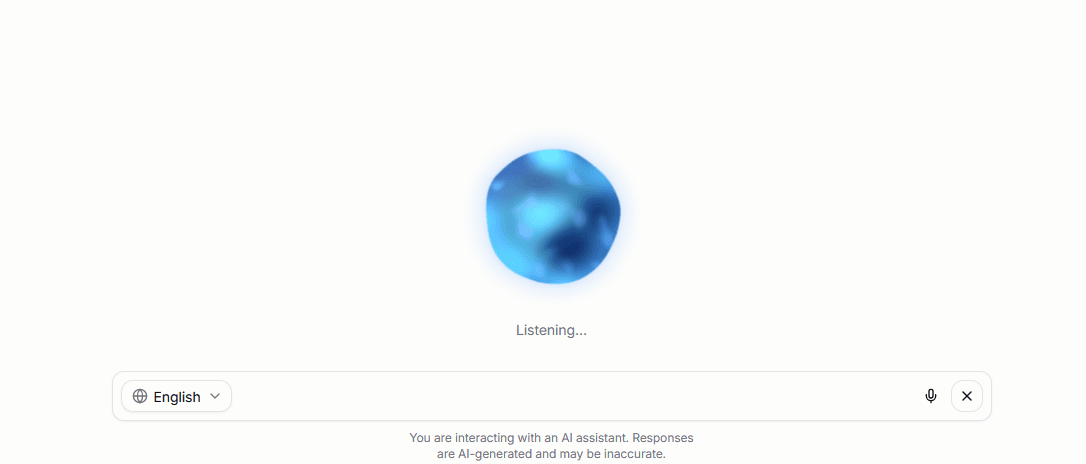
Control the conversation
| Action | Result |
|---|---|
| Speak while the assistant is answering | Interrupts its reply, stops queued audio, and starts your next turn. |
| Mute / Unmute | Stops or resumes sending microphone speech. Muting does not keep an idle session open indefinitely. |
| Change Language | Restarts the voice session in the same chat with the selected language. |
| End the voice conversation | Stops the microphone session and returns to the text composer. |
| Start again after the session ends | Starts another voice session in the same conversation. |
A session ends after one minute with neither side speaking. Leaving the conversation also stops the session. Dictation, read-aloud, and Voicebot share one browser audio session: starting another audio activity stops the previous one.
Continue in text
End the voice session to return to the composer. Finished user turns and the assistant text sent with its speech remain in the chat, so you can continue typing or reopen the conversation later.
If you interrupt an answer, the saved reply contains the portions already sent, not the entire answer the model might have generated. A dropped connection retains completed turns; unfinished speech is not guaranteed to be saved.
Know which features apply
Live Voicebot uses the selected model. A saved Agent contributes its model and system prompt, but not its MCP tools or configured knowledge sources. Voicebot does not use Skills, file retrieval, or web search. Continue in text when the task needs those capabilities.
Voicebot is unavailable while Deep Research, dictation, or an unfinished text response is active. Selecting an Agent with connected sources does not make those sources available in voice mode.
Resolve common problems
| What you see | What to do |
|---|---|
| Microphone permission denied | Allow microphone access for the Portal in browser settings, then start again. |
| No microphone or device busy | Connect a microphone or release it from the other application. |
| Unsupported browser | Use a browser with microphone and Web Audio support over a secure connection. |
| No voice available | Choose another available language or ask the operator to check installed voices. |
| Speech was not caught | Say the turn again. No usable transcript means there is nothing to answer. |
| Transcript may be incomplete | Check the text and speak a correction; the partial transcript may already have been answered. |
| Reply failed or was cut short | Ask again. Already completed turns remain in chat. |
| Connection or speech/model service unavailable | Check connectivity and model availability, then start again. Ask the operator to check the named service if it persists. |