Chat & Work
Use conversations, files, Agents, Skills, research, voice, and connected tools in the Portal.
Chat & Work is the Portal workspace for everyday AI tasks. Start conversations with available models, ground answers in your files, and use reusable Agents, Skills, or connected tools.
Before you begin
Sign in to the Portal, select the intended tenant, and open Chat & Work from the workspace switcher. Access to each feature and resource depends on your permissions. For conversations, you also need access to a chat model or Agent.
For sign-in, workspace navigation, language, and appearance, see the Portal.
Workspace layout
The sidebar brings together the main working areas:
- New Chat — start a conversation with an available model or Agent.
- Files — upload, organize, share, and prepare documents for retrieval.
- Agents — create and reuse assistants configured for a task.
- Skills — manage reusable task instructions for chat.
- MCP Servers — connect tools available to your organization.
- API Keys — create and manage your programmatic access keys.
The sidebar also includes chat-history search, account actions, and a workspace switcher. Model management is in AI Hub, and data connections and ingestions are in Data Hub.
Chat
The chat workspace is the main day-to-day entry point for most users.
This is where users start conversations, switch between available models, and work with the retrieval and assistant features exposed in their environment.
Composer tools
The chat composer includes several important controls:
- the
+action menu for adding files to the conversation - a
Searchtoggle for web search - a
RAGpicker for selecting retrieval-ready files and folders - an MCP connector menu for selecting the MCP Servers the user can reach
- a microphone control for dictating a message
- an audio-wave control for starting a live Voicebot conversation
- a model selector for choosing from available chat models and Agents
- a Skills menu under +, and a
/picker for skills in Yours
The RAG control is connected to files that are already available for retrieval in the platform. This lets users scope a prompt to selected files or folders instead of relying only on the base model.
The model selector is environment-driven. It lists available chat models and also surfaces configured Agents, with recent selections shown first for convenience.
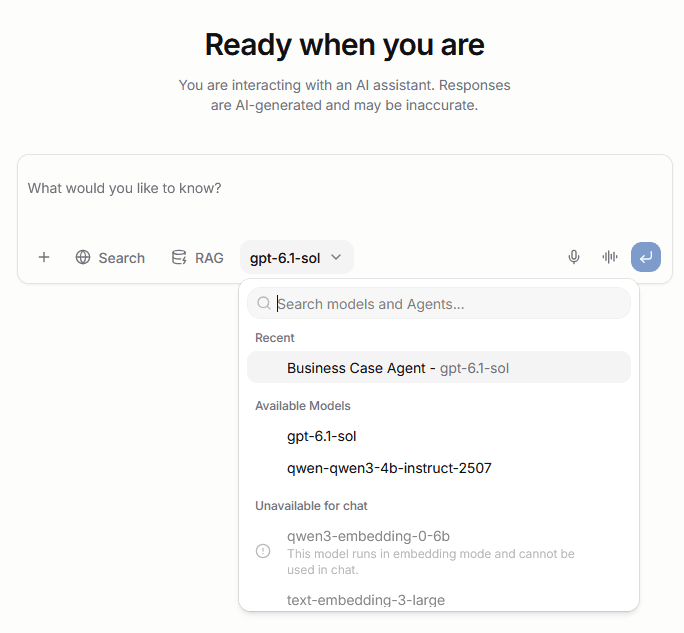
If a model you expect is missing, check Available models in the AI Hub, or see Models for the platform-side model management view.
What users can do from chat
From the chat workspace, users can typically:
- start a new conversation with an available model
- attach supporting documents to a message
- paste or attach PNG and JPEG images when the selected model supports vision
- dictate editable text through the microphone control
- use retrieval over indexed content through
RAG - enable web search when the deployment exposes it
- select reachable MCP Servers for direct chats
- switch between raw models and higher-level Agents
- use skills for reusable task instructions without switching the model or Agent
- revisit earlier conversations from the sidebar
The first assistant surface in a conversation identifies that the user is interacting with AI and that generated responses may be inaccurate. A shorter reminder remains visible during the conversation.
Reopening a conversation restores its selected model or Agent and its document or folder retrieval scope. Image attachments remain visible with the saved message.
Image and voice input
The composer accepts PNG and JPEG images when the selected model supports vision. Each image can be up to 20 MB, and one message can contain up to 10 images.
Voice input requires browser microphone access, a supported secure browser context, and an active tenant. The portal streams speech to the BSQAI API and inserts the transcript into the editable message field. Recording stops after 20 seconds of sustained silence or after a maximum of 120 seconds.
Voicebot: dictate and listen
Use Dictate a message to transcribe into the editable composer, then review and send it yourself. Select Read aloud on an assistant reply for playback, with Pause reading and Resume reading controls.
For a live exchange, select the separate audio-wave button, Start a voice conversation, and choose a language. Voicebot automatically sends completed spoken turns and reads the answers aloud. You can interrupt by speaking, mute the microphone, and return to text in the same chat. It ends after one minute with neither side speaking.
Live voice does not use Skills, file retrieval, web search, or an Agent's MCP tools. See Voicebot for prerequisites, controls, conversation history, and failure recovery.
Deep Research
Enable Deep Research in the composer for a multi-step web investigation. You can answer clarification questions, edit and approve the search plan, follow progress, and export the cited report. The approval countdown automatically continues with the original plan when it expires. See Deep Research for the complete workflow.
Streaming and response experience
Responses stream progressively into the conversation instead of appearing only at the end.
Depending on the selected model or assistant, the UI can also show:
- source links for grounded answers
- reasoning sections when the backend exposes them
- tool and assistant activity blocks for intermediate steps
- copy actions for the latest assistant response
This makes the chat view useful not only for end-user prompting, but also for understanding how an assistant or tool-enabled workflow arrived at its answer.
Tool calls, web search, and intermediate steps
When web search, an Agent, or an MCP Server is active, the conversation can surface intermediate steps directly in the message flow.
That can include:
- tool names such as
web_search - the parameters sent to the tool
- structured tool results
- the final assistant answer generated from those results
This makes it easier to see when the assistant is relying on external tools instead of only generating a direct model completion.
In more agent-like flows, the same conversation area can also expose reasoning traces and other intermediate assistant activity when the backend provides them.
These elements help users distinguish between:
- the final assistant answer
- the intermediate actions the system took while producing it
This is especially useful for debugging assistant behavior, validating retrieval or tool use, and understanding why a response took longer than a simple direct completion.
Files
The files area is the document and retrieval workspace of the portal.
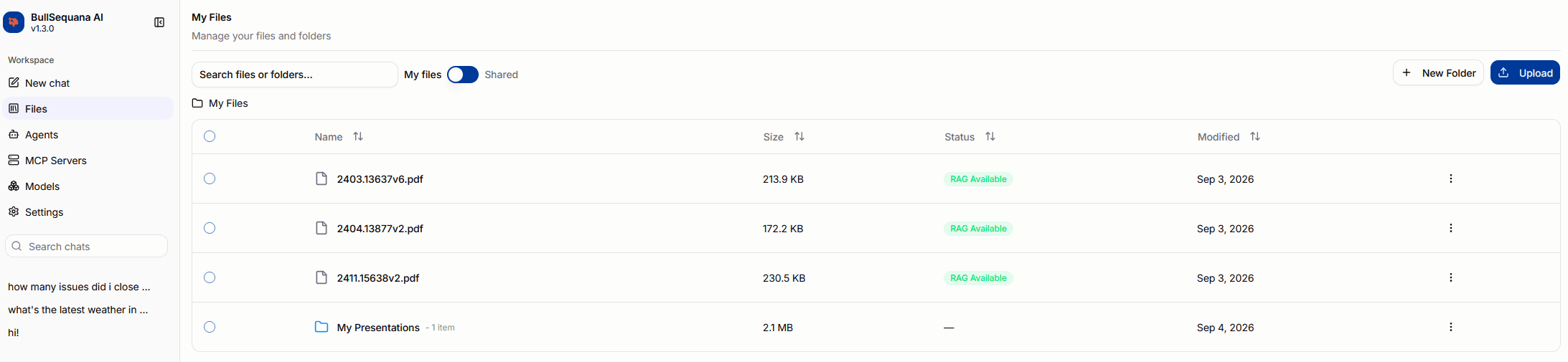
This is where users upload content, organize it into folders, and track whether a file is ready to be used in retrieval-augmented chat.
What users can do
From the Files area, users can typically:
- upload files into the current folder
- create folders and nested folder structures
- browse and search through their library
- rename or delete files and folders
- move files and folders by drag and drop
- share files and folders with other users or groups
- retry indexing for files that failed RAG processing
The page also exposes a live upload indicator so users can see when files are still being transferred in the background.
Uploading files
Uploading is done from the current folder context.
Users can open the upload panel from the main Upload action or from a folder-specific upload action, then drop files into that target location.
This makes it easy to keep retrieval content organized from the start instead of uploading everything into a flat top-level library.
Supported file types
The upload panel accepts files across four categories:
- Documents —
pdf,docx,md,pptx,txt,vtt - Data —
json,csv,xlsx - Code —
py,ts,tsx,js,jsx,java,go,rs,c,cpp,h,hpp,kt,swift,rb,php,cs,scala,sql,sh - Config —
yaml,yml,toml,ini
The upload panel displays these categories in a collapsible list so users can check which formats are accepted without leaving the upload flow.
OCR
OCR is enabled by default for uploaded files. The OCR engine is set to auto, which lets the backend select the most appropriate engine for each file automatically.
File status and RAG readiness
Each file carries a status that reflects whether it is ready for retrieval.
The important user-visible states are:
RAG PendingRAG ProcessingRAG AvailableRAG FailedRAG Removed
This matters because a file can exist in the library before it is actually searchable in chat.
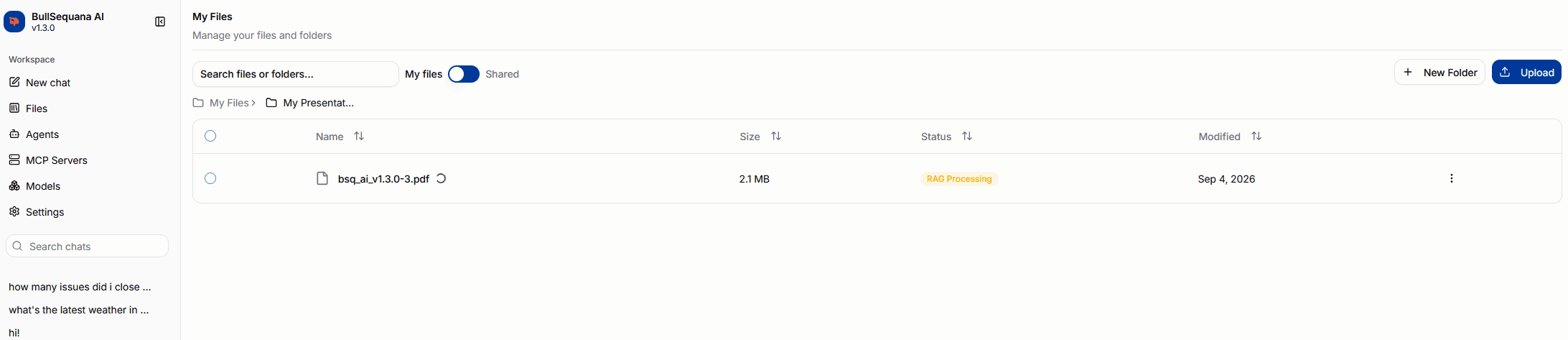
Only retrieval-ready files can be used through the chat RAG picker. In practice, users should wait for RAG Available before expecting grounded answers from that content.
Sharing files
Files and folders can be shared with other users or Keycloak groups.
Opening the Share action on any file or folder opens a slide-in panel with two sections:
- Users — assign or remove roles for individual users in the organization
- Groups — assign or remove roles for Keycloak groups
Assign Viewer for read access or Editor for read and write access. Owners are shown read-only in the sharing panel; this is not an ownership-transfer control. Sharing with a group applies the role to its members.
My Files and Shared views
The Files page has two views, selectable via the filter toggle:
- My Files — files and folders owned by the current user
- Shared — files and folders that have been shared with the current user by someone else
In the Shared view, hovering the shared icon can show the owner when you can read the sharing information. Otherwise the Portal shows a generic shared indicator.
Folder URLs and bookmarks
When navigating into a subfolder in the My Files view, the browser address bar updates to include the folder's UUID. This means:
- refreshing the page reopens the same folder
- bookmarks and shared links work for individual folders
- the URL remains valid even after the folder is renamed
Folder URLs only update in the My Files view. Navigation within the Shared view does not change the URL.
Permissions
Tenant operation permissions and access to the specific file or folder are both required. Owner and editor access can be direct, granted through a group, or inherited from a parent folder. Tenant-administrator status is not automatic access to another user's private files.
- Viewer: read and download accessible files; cannot upload into a shared folder or retry indexing.
- Editor: also upload into an accessible shared folder and retry indexing, with the corresponding create or update permission.
- Owner: manage the resource and its sharing, subject to operation permissions.
The Portal keeps rename, move, delete, sharing, and folder-management controls in My files. It offers upload and indexing retry in Shared when the operation permission is present; the endpoint still checks effective editor access. Seeing an action is not proof that the write will be accepted.
Upload or retry in a shared folder
- Select Shared and find the intended folder.
- Open that folder row's action menu, choose Upload, select the files, and submit.
- Wait for the uploaded files to reach RAG Available before using them in chat.
- For a failed file, use its retry action and check the resulting indexing status.
Files uploaded into a shared folder belong to that folder's owner, preserving the shared library's ownership. If the action reports that editor access is required, ask the owner to share the folder or file with you as an editor. Viewer access and a tenant role alone are insufficient.
Relationship to chat
The Files area is tightly connected to the chat experience.
- files uploaded here become the content source for retrieval
- folders created here can be selected later in the chat
RAGcontrol - files shared with you appear in the chat
RAGpicker when they haveRAG Availablestatus - failed files can be reprocessed here before trying retrieval again
For a deeper platform-level explanation of how uploads become retrieval-ready data, see Files & RAG.
Models
Model management lives in the separate AI Hub workspace, reached from the workspace switcher. Each model list and action is governed by its own permissions; entering the workspace does not grant deployment or registry-management rights.
This guide covers only where models appear in the Chat & Work interface. Use the AI Hub guide for the complete workflow:
- Available models lists what the environment already exposes for use.
- Model repository covers registered models, their versions, and the model page.
- Deployment covers easy and advanced setup, and deploying from a vLLM recipe.
- Downloads covers importing Hugging Face models into the repository.
- vLLM recipes covers the recipe catalogue and its refresh, export, and import actions.
- Experiments covers MLflow experiments and runs.
Model presets
Model presets moved to AI Hub → Model presets. See Model presets.
Agents
An Agent saves a model, system prompt, and optional web-search provider, file or folder, and MCP Servers for reuse. Open Chat & Work → Agents. The complete Agents guide covers configuration, source access, testing, updates, sharing, and deletion.
Create an Agent
Select New Agent, give it a name and description, choose AI Model, and write System Prompt. Add optional knowledge sources or MCP Servers, then select Create Agent. Follow Create an Agent for the full procedure.
How it works at runtime
An Agent is a saved configuration, not a separate model deployment. Text chat resolves its model, prompt, configured knowledge, and tools with the caller's permissions. Voicebot uses only its model and prompt.
Use an Agent in chat
Select the Agent from the model selector. Its configured file or folder supplies the retrieval scope instead of an ad hoc chat RAG selection. Test a representative question and inspect the retrieved context or tool results. See Use and verify an Agent.
Search and reuse
Search by Agent name or model, or filter All Agents, My Agents, and Shared Agents. Recently used models and Agents also appear in the chat selector.
Share an Agent
The creator can use Share with the required grant-management permission. Assign tenant users or groups and save the changes. Share any required files separately; each recipient must link their own MCP credentials where required.
Roles
Viewers can read and use an Agent, editors can also update it, and owners can share or delete it, with the corresponding operation permissions. Administrator status alone does not grant access to private Agents. See Share an Agent.
Practical mental model
A model supplies generation capability. An Agent saves its configuration for a purpose. A Skill adds reusable task instructions without changing the selected model or Agent.
Skills
A skill contains reusable instructions and optional supporting files for a task, such as a review checklist or a writing style. Unlike an Agent, a skill does not select a model, define a whole assistant, or grant access to tools.
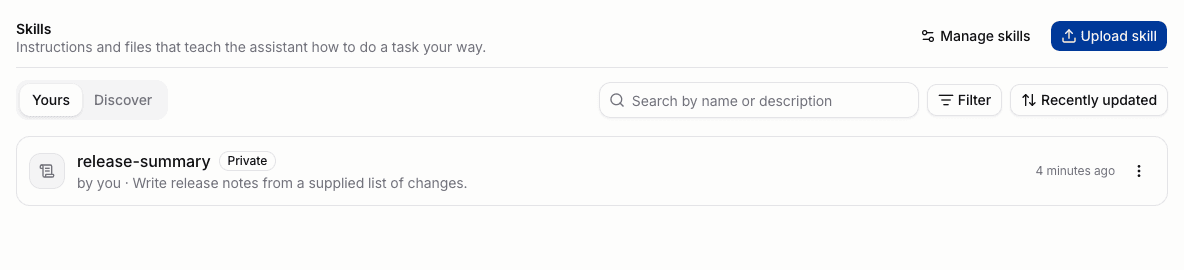
Open Skills from Chat & Work. Yours contains the skills you selected for chat. Discover lists skills that other members share with your organization. Your uploads start private and appear in Yours after validation.
Adding a skill to Yours makes it available to chat. Activation loads its instructions into a particular conversation. Type / in the composer to pick a skill, or write /skill:<name>. Chat shows the loaded skill and its revision.
Use the task guides and reference for details:
- Use skills in chat covers inspection, selection, activation, and Stop using.
- Upload and manage skills covers creation, editing, sharing, copying, and deletion.
- Skill package reference describes
SKILL.md, supporting files, metadata, and limits.
MCP Servers
The MCP Servers area lists the Model Context Protocol servers available to the active organization. Members use these servers as connectors in chats and Agents, while Platform Admins manage which servers and tools the organization can use.
The list marks each server with its credential state. Linked and Not linked report the signed-in user's own credential. Unauthenticated reports a server whose upstream system needs no credential from anyone, so it is ready to use without linking.
This guide covers only where MCP Servers appear in the interface. Use the dedicated MCP Servers guide for the complete workflow:
- How MCP works on the platform explains managed and remote servers, the Gateway, credential modes, and tool restrictions.
- Add an MCP Server and restrict its tools cover administrator tasks.
- Link your credential and use an MCP Server in chat cover member tasks.
- Connect an MCP client covers coding agents and desktop clients that use the Gateway URL.
- MCP reference documents endpoints, fields, status values, and errors.
API Keys
API Keys provide programmatic access to the AI platform for the signed-in user and active tenant. Open them from Chat & Work → API Keys. Creating a key requires credential.api_key.create; listing and revoking keys use their own credential permissions. A key does not grant rights beyond its authorized user and tenant context.
The page lists the key name, masked value, and creation date. Users can inspect key details or delete an existing key.
To create a key:
- Select New Key.
- Enter a name.
- Select Create.
- Copy the full secret from the confirmation dialog.
The full secret is shown once. After the dialog closes, the portal retains only its masked representation. A user cannot see another user's keys, and a key cannot access another tenant.
Tenant-wide configuration is managed separately in the Administration workspace.
Practical tips
- Use the portal to see which models and Agents are available to the active tenant.
- Check Available models before copying a model name into developer tools or applications.
- Check the active tenant when expected files, Agents, presets, or API keys are missing.
- Administrative pages and actions appear only when the signed-in user has the required role or permission.