Upload and manage skills
Upload a skill package, publish revisions, and control sharing from the Portal.
Use this guide to create and maintain reusable instructions for Portal chat. After validation, your new skill is private and appears in Yours.
Before you begin
You need the following access and input:
- a signed-in Portal session in the correct organization
- permission to read and create skills
- a
.md,.zip, or.skillpackage that follows the Skill package reference - permission to upload every file in the package
Editing, sharing, and deletion require their respective permissions. Only the creator can change or delete the original skill.
Prepare a package
- Create a UTF-8 Markdown file with the SKILL.md example.
- Replace the name, description, and instructions with the task you want the skill to handle.
- Save the file with a
.mdextension.
If the instructions refer to supporting files, include those files in a .zip or .skill package with SKILL.md.
Upload a package
- In Chat & Work, open Skills.
- Select Upload skill.
- If the page shows an upload limit, check that your package fits it.
- Drop one package onto the upload area or select Browse files.
- Check the filename, file size, and any validation error.
- Select Upload.
- Wait for validation and publication.
- On the skill page, check that the skill has Revision 1 and appears In Yours.
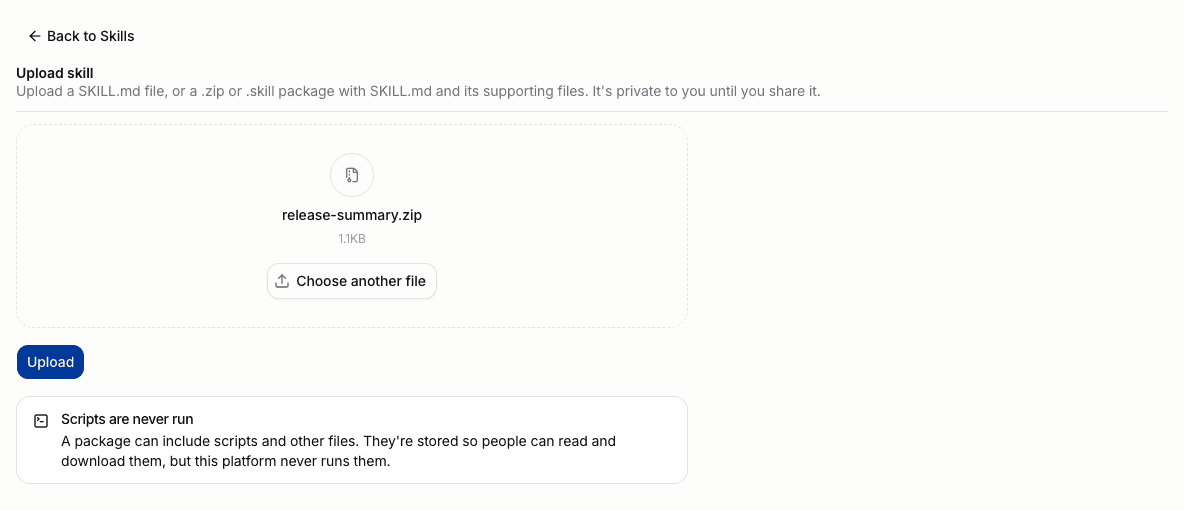
You can leave the page while processing continues. Open Skills → Manage skills to find the operation under In progress and failed.
If validation fails, read the specific error. Correct the package. Then upload it again. A failed upload does not create a usable skill.
Edit a skill
- Open a skill you created.
- Select Edit.
- Select
SKILL.mdor a supporting file in Skill files. - Change the text in Edit.
- For Markdown, select Preview to check the formatted text.
- Select Save revision.
- Wait for validation.
- Check the new revision number on the skill page.
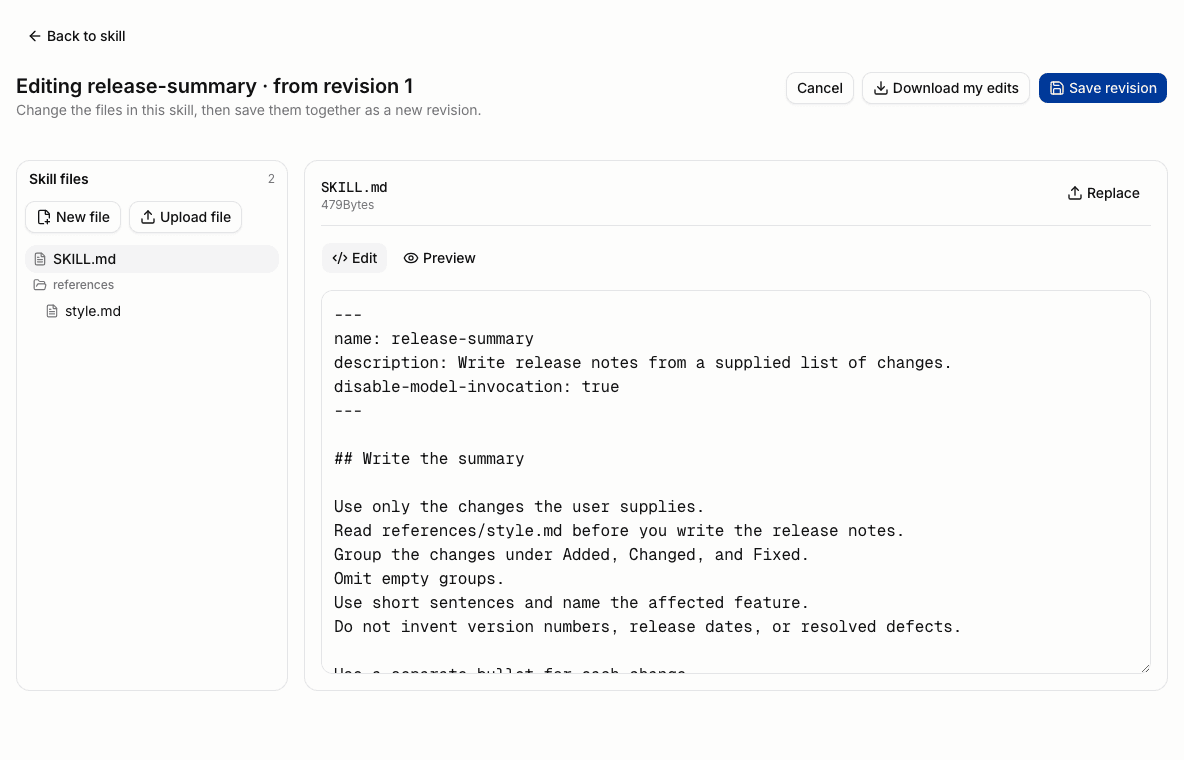
The save includes the complete package. A failed save leaves the current published revision unchanged.
To change the files in the package, use these actions:
- New file creates a text file.
- Upload file adds a supporting file.
- Replace replaces the selected file.
- Rename changes a supporting file's path.
- Delete removes a supporting file.
SKILL.md remains the entry point. You can replace its contents, but you cannot rename or delete it.
If the Portal warns about unsaved changes, stay in the editor to save the draft or discard the changes.
Replace the whole package
- Open a skill you created.
- Open its actions menu.
- Select Update.
- Choose the replacement
.md,.zip, or.skillfile. - Select Save revision.
- Check the new revision after validation.
The replacement becomes the complete next revision. Include every supporting file that the skill still needs.
Recover from a save conflict
If another edit publishes a revision after you open the editor, the Portal refuses to overwrite it.
- Select Download my edits to keep your local changes.
- Select Discard and load latest.
- Reapply the intended changes to that revision.
- Save the package again.
Do not discard the draft until you have a copy of the changes you need.
Share a skill with your organization
Sharing gives organization members access to the skill package. It does not grant access to a model, an MCP Server, or other tools.
- Open a skill you created.
- Check the instructions and every supporting file for information you must not share.
- Turn on Shared with organization.
- Select Share in the confirmation dialog.
- Check that the skill shows Shared.
Other members can inspect the skill in Discover and add it to Yours. They cannot edit your original.
Make a private copy
- Open a skill you can read.
- Select Make a copy.
- Enter a name that you do not already use in this organization.
- Select Make a copy.
- Wait for validation and the copy's editor to open.
- Check that the copy appears in Yours as a private skill.
The copy is independent. Later edits to the original do not update the copy. You can edit and share your copy.
Make a shared skill private
Previously delivered instructions and resources remain in existing conversations. Making a skill private does not retract that content.
- Open the skill you created.
- Turn off Shared with organization.
- Read the confirmation dialog.
- Select Stop sharing.
Other members lose access to the package and cannot activate it or read further resources. Your own access remains.
Download a package
- Open the skill.
- Select Download.
The download is a ZIP archive with SKILL.md and the supporting files inside one root directory. A skill page opened from chat downloads the displayed revision.
Find a skill you removed from Yours
- Open Skills.
- Select Manage skills.
- Find the skill under Created by you.
- Open the skill.
- Select Add to Yours to make it available to chat again.
Manage skills includes your uploads and copies even after you remove them from Yours.
Delete a skill
Deletion removes the skill from libraries and prevents further activation and resource reads. Existing conversations retain the content they already received.
- If you need a backup, download the skill first.
- Open the skill you created.
- Open its actions menu.
- Select Delete skill.
- Read the confirmation dialog.
- Select Delete skill to confirm.
Deletion cannot be undone. Independent copies are not affected.