Use skills in chat
Inspect reusable task instructions, add them to Yours, and use them in a conversation.
Use a skill to apply a review checklist, writing style, or another repeatable method in chat. You keep the selected model or Agent.
Before you begin
You need the following access:
- a signed-in Portal session in the correct organization
- permission to read skills and use chat
- an available chat model or Agent
Skills work with a model or Agent in ordinary text chat. They are not available in Deep Research, live Voicebot, or the OpenAI Responses and Anthropic-compatible API paths.
If Skills is unavailable, ask your tenant administrator to check your access.
Inspect a skill
- In Chat & Work, open Skills.
- To find a skill shared by another member, select Discover.
- Search by name or description.
- Open the skill.
- Read its description, activation rule, and warnings in Overview.
- Select Contents to inspect
SKILL.mdand the supporting files.
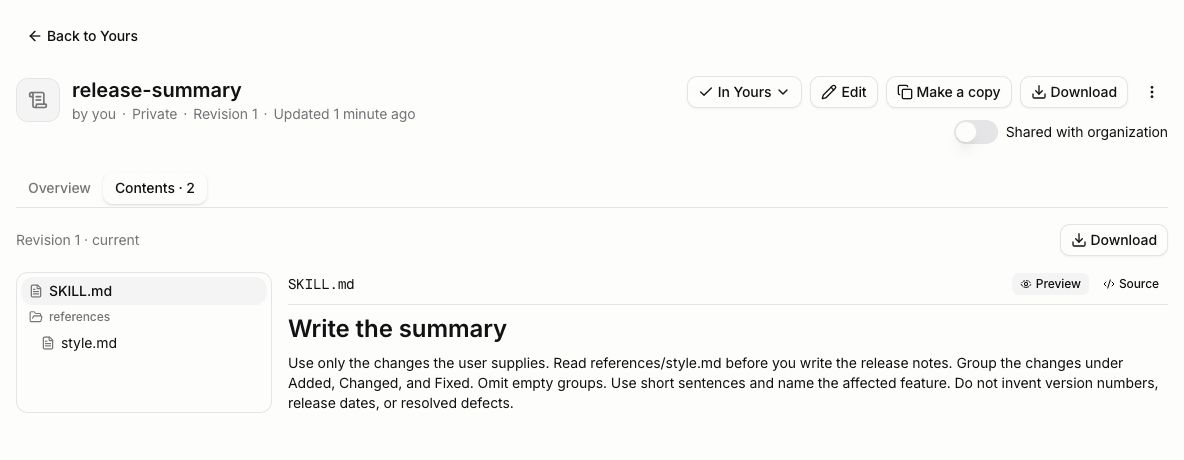
For Markdown files, Preview shows formatted text. Source shows the file text. Images in skill previews appear as placeholders rather than loading image URLs.
Add a skill to Yours
- On the skill page, select Add to Yours.
- Return to Skills.
- Check that the skill appears under Yours.
Discover keeps the row and marks the skill Added. Adding a skill selects the original. It does not create a copy.
To narrow Yours, use Filter to choose Uploaded by me or From your organization. To change the order, choose Recently updated or Name.
Mention a skill in chat
- Open a conversation or select New chat.
- In the composer, type
/. - Pick a skill from the suggestions.
- Write the task.
- Include the input the skill needs.
- Send the message.
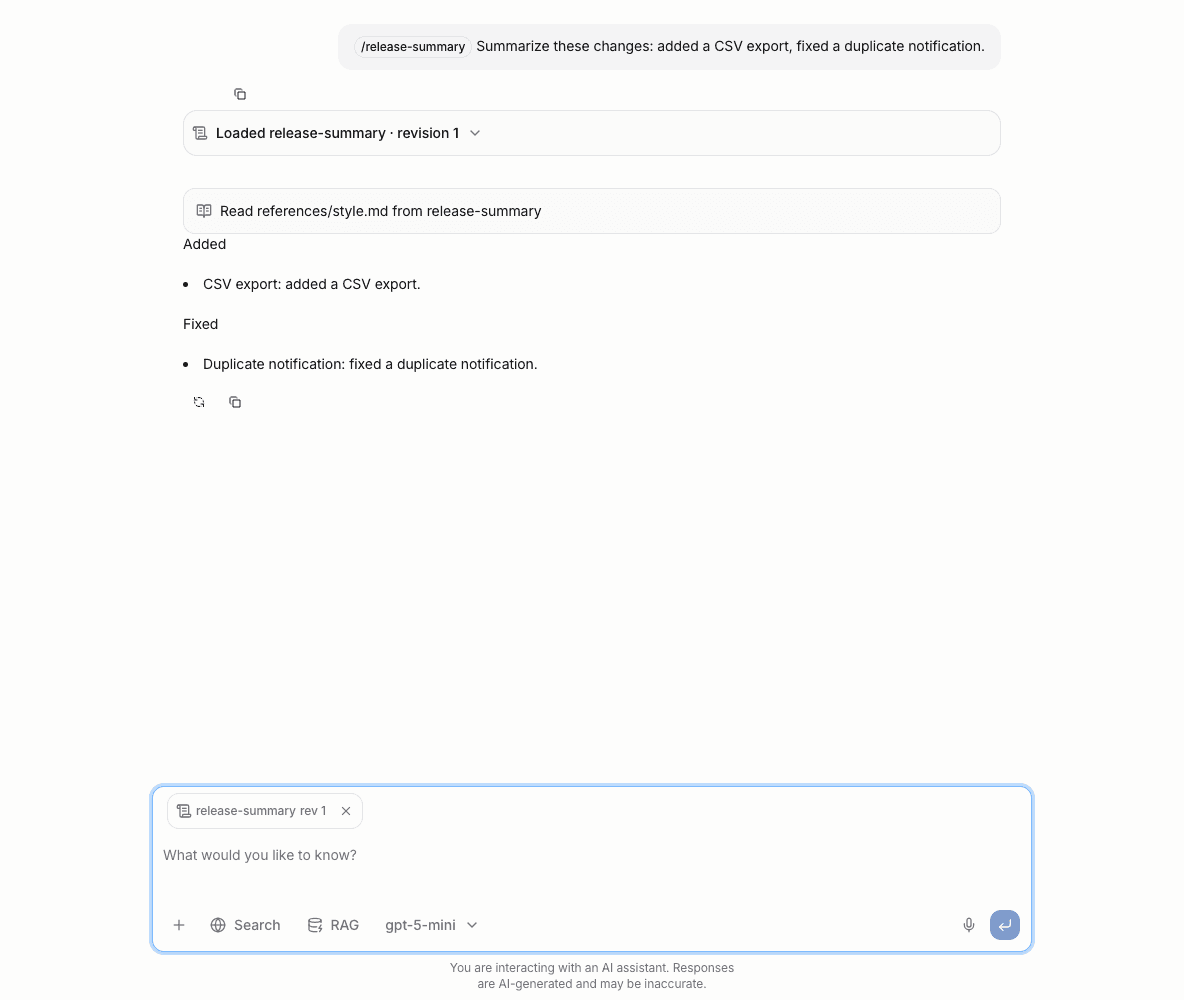
- Check that chat shows Loaded with the skill name and revision.
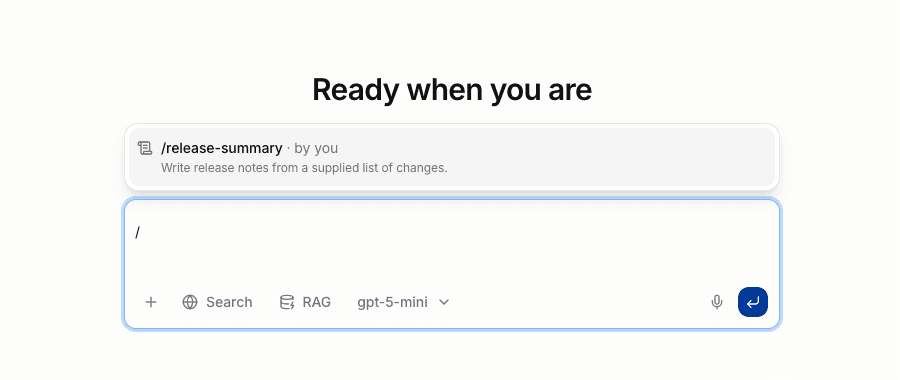
The picker inserts /skill:<name>. For example, a skill named release-summary uses this reference:
/skill:release-summary Summarize these changes: added a CSV export, fixed a duplicate notification.You can also type the reference directly or open + → Skills. The picker lists skills in Yours, not every shared skill.
You can mention more than one skill in a message. All explicit references must resolve before generation begins; repeating the same skill does not load it twice.
If two selected skills have the same name, use the picker to identify the intended skill. It binds the selection to that skill's identity. Copied or manually typed reference text does not preserve that binding and can be ambiguous; choose again from the picker. Typing /name alone is not the canonical /skill:name reference.
References inside code blocks, inline code, or after a backslash remain literal text. They do not load a skill.
Check automatic activation
- Open the skill's Overview.
- Check the activation rule under How to use.
- If the assistant can load the skill, send a relevant task without a reference.
- Check chat for Loaded before relying on the skill's instructions.
Selection does not force activation. The assistant chooses whether to load a relevant skill. Loads only when you mention it means an explicit reference is required.
If chat says a skill was not offered to the assistant, mention that skill with /.
Inspect the revision used by a conversation
- Expand the Loaded row in chat.
- Select Open skill.
- Check the revision number on the skill page.
- To inspect a newer revision, select View current.
A conversation keeps the revision from its first activation. Later edits do not replace that revision in the existing conversation. A new conversation uses the currently published revision when the skill activates; selecting a shared skill is not a permanent freeze of its package. Inspect updates when their instructions matter to your workflow.
Stop using a skill
- Above the composer, find the active skill's chip.
- Select its × control.
- Check that the skill no longer appears among the active skills.
The chat history keeps the instructions and resources it already received. Stop using excludes the skill's instructions from later model requests. It also prevents further resource reads and automatic activation in that conversation.
To resume the skill, mention it again. Use again on the stopped skill's chat row inserts the reference, which you then send. The conversation reuses its pinned revision. To use a newer revision, start a new conversation.
Remove a skill from Yours
- Open the skill from Yours.
- Open the In Yours menu.
- Select Remove from Yours.
The skill leaves your chat picker. Removal does not delete the package or retract content from existing conversations.
Resolve a refused reference
If chat cannot resolve a reference, no answer starts and the message remains in the composer.
- If the skill is not selected, add it to Yours.
- If the name is ambiguous, choose the intended skill from the picker.
- If the skill is no longer shared or is deleted, remove the reference or choose another skill.
Then send the message again.
If the instructions do not fit the model's context, use a shorter skill or a model with a larger context.