Add an MCP Server
Register a Remote endpoint or run a container as a Managed Server, then edit or remove it.
Only a Platform Admin can add an MCP Server. A member who opens the create form is told that only a Platform Admin can change MCP Servers.
Adding a server makes it available to the whole organization. It does not give anyone access to the system behind it. Each member still links their own credential.
Open the section
In the Portal sidebar, under Workspace, select MCP Servers. The list shows every server the organization has, with its runtime, its status, and whether you have linked a credential to it.

Select Add MCP Server.
Start from a preset
The create page opens with a preset picker. A preset fills in the form for a well-known MCP Server so you only have to review it.
| Preset | Runtime | Address or image |
|---|---|---|
| Linear | Remote | https://mcp.linear.app/mcp |
| Linear (read-only) | Remote | https://mcp.linear.app/mcp/readonly |
| Notion | Remote | https://mcp.notion.com/mcp |
| GitHub | Remote | https://api.githubcopilot.com/mcp |
| Context7 | Managed | docker.io/mcp/context7:latest |
| Custom | Either | Nothing prefilled |
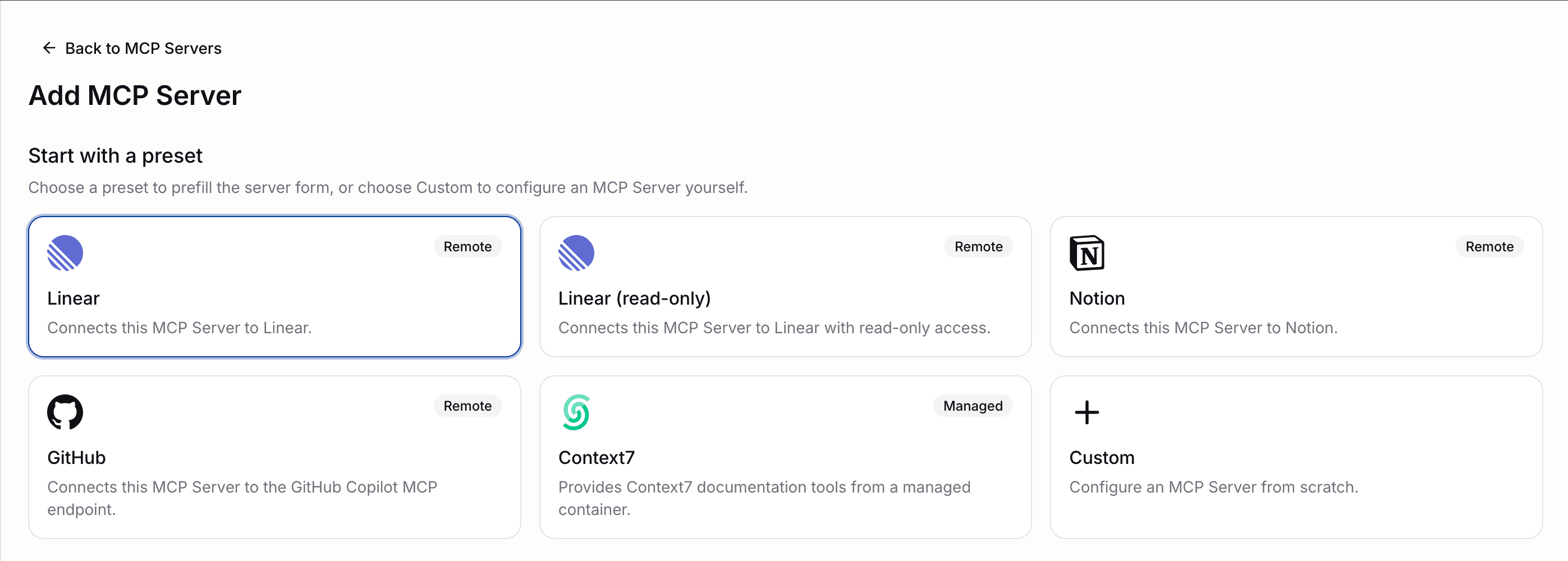
Choose Custom to configure a server yourself.
Fill in the basic information
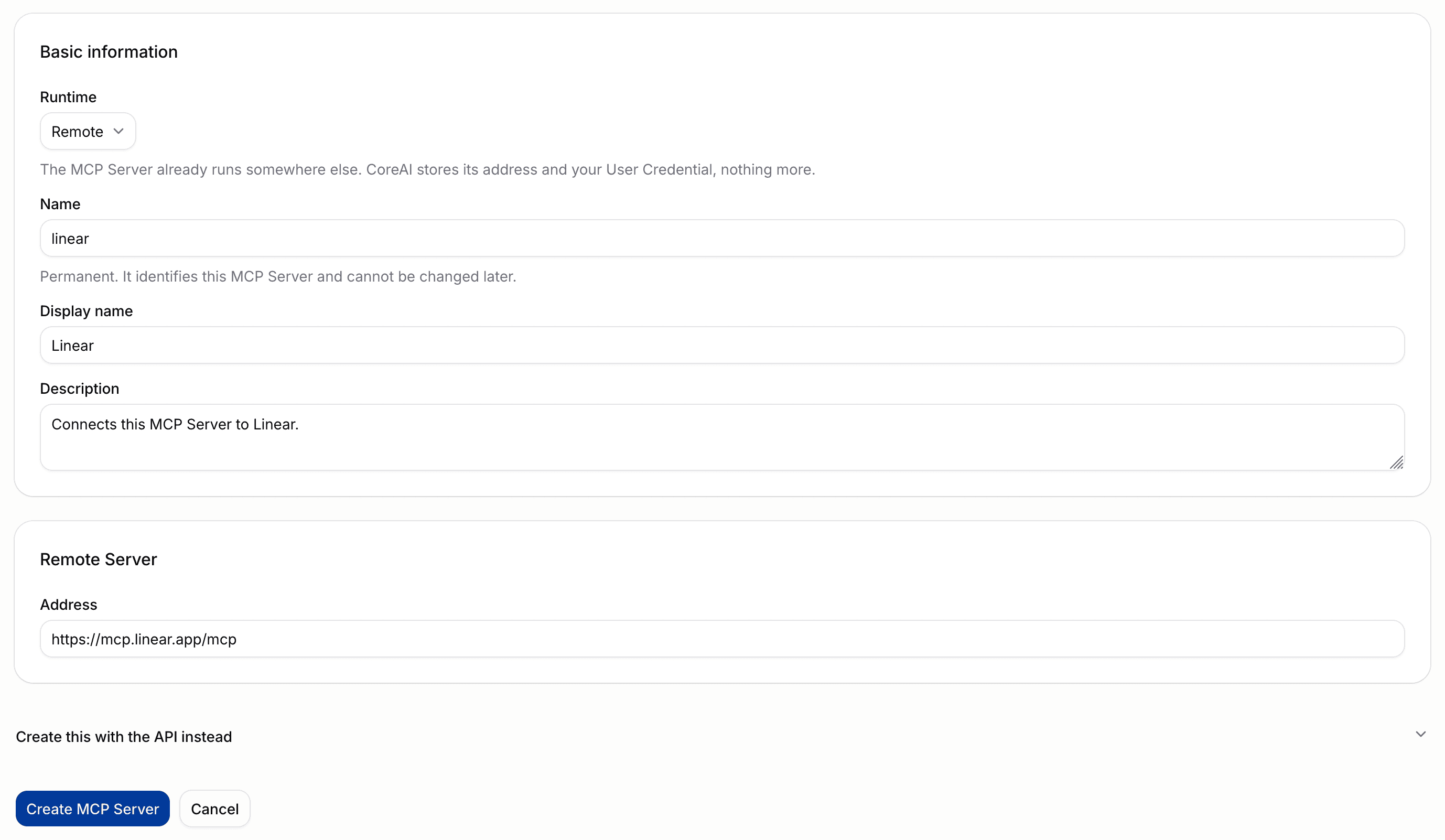
Every server, of either runtime, needs these fields.
| Field | Rule |
|---|---|
| Runtime | Managed or Remote. Permanent once saved. |
| Name | Lowercase letters, numbers, and dashes, starting and ending with a letter or number. Up to 63 characters. Unique within the organization. Permanent once saved. |
| Display name | The label people read. Up to 200 characters. Editable. |
| Description | Optional. Up to 500 characters. |
The name is the identifier the organization's own references are written against, so it cannot be changed later. The display name carries any wording you want to revise.
Add a Remote Server
A Remote Server has one runtime field.
Address is the full MCP endpoint, including the path. For example, https://mcp.linear.app/mcp.
The address must satisfy these rules:
- It uses the
httporhttpsscheme, written in full. A bare hostname is refused. - It has no leading or trailing whitespace.
- It carries no username or password. Credentials belong in a User Credential, not in the URL.
- Its host is publicly resolvable. Private IP ranges,
localhost, single-label hostnames, and cluster-internal names such assvc.cluster.localare all refused. - It is at most 2048 characters.
A refused address returns mcp_server_address_invalid and names the rule it broke.
Add a Managed Server
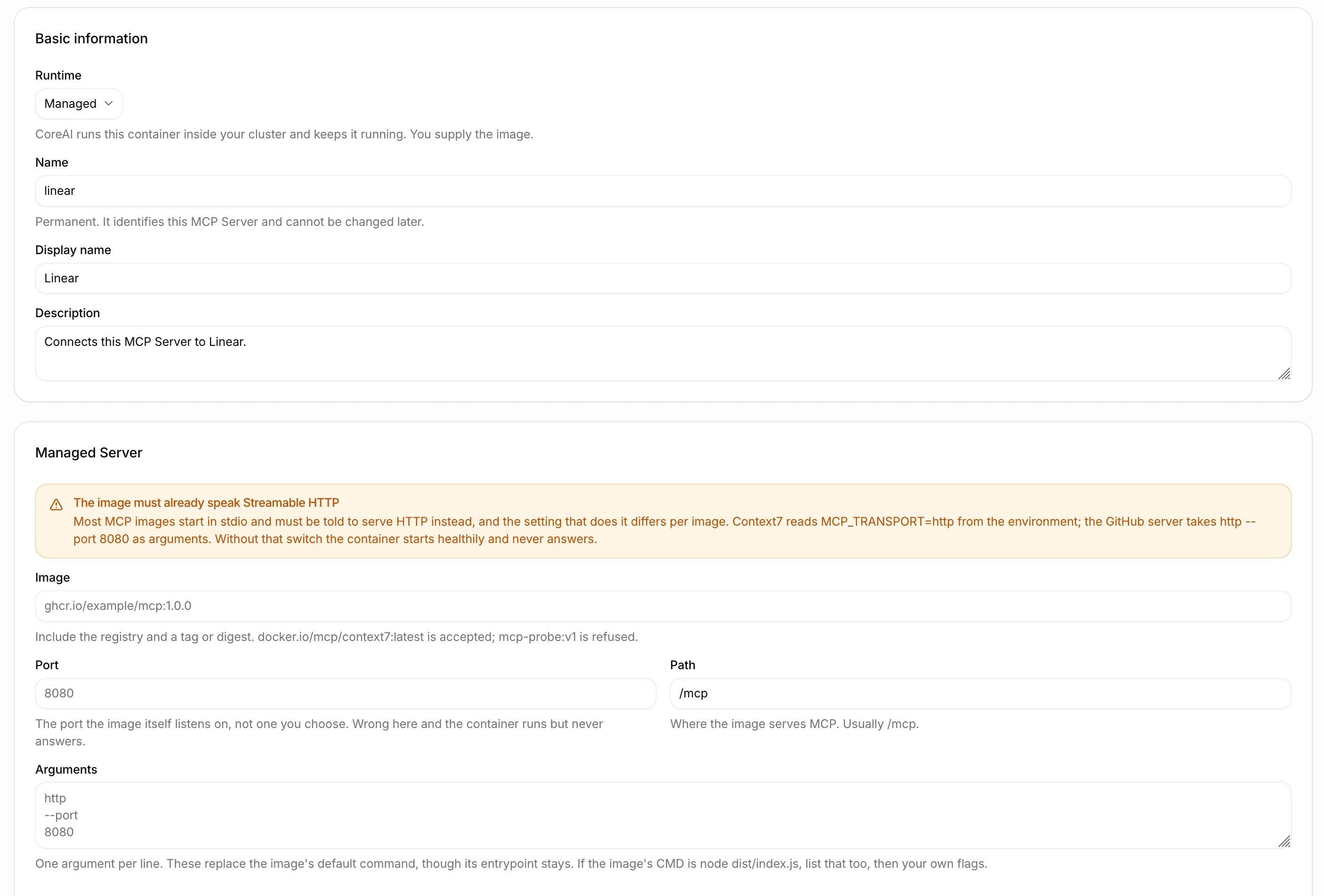
A Managed Server needs the container definition as well.
| Field | Rule |
|---|---|
| Image | Registry-qualified, with a tag or digest. docker.io/mcp/context7:latest is accepted. mcp-probe:v1 is refused. |
| Port | The port the image itself listens on, between 1 and 65535. |
| Path | Where the image serves MCP. Defaults to /mcp. Must start with a slash. |
| Arguments | One per line. Optional. |
A rejected image returns mcp_server_image_invalid and names the reference rule it broke. The API applies the same image-reference rules as the operator CRD. Form acceptance does not prove that the registry is reachable or that the image exists; those failures appear in the Managed Server status.
Four settings decide whether the container ever answers.
The image must already serve Streamable HTTP. Most MCP images start in stdio mode. Something has to switch the image out of stdio, and the switch differs per image. Context7 reads MCP_TRANSPORT=http from the environment. The GitHub server takes http --port 8080 as arguments. Without the switch the container starts, reports healthy, and never listens on the port.
Arguments replace the image's default command, and the entrypoint stays. An image whose CMD is node dist/index.js needs that listed first, then your own flags. Passing only a flag runs the entrypoint with that flag and the container dies.
Port must be the port the image listens on, not one you pick.
Path must be where the image serves MCP. Usually /mcp.
Environment variables
The Environment card takes one KEY=VALUE per line. Names must start with a letter or underscore and contain only letters, numbers, and underscores.
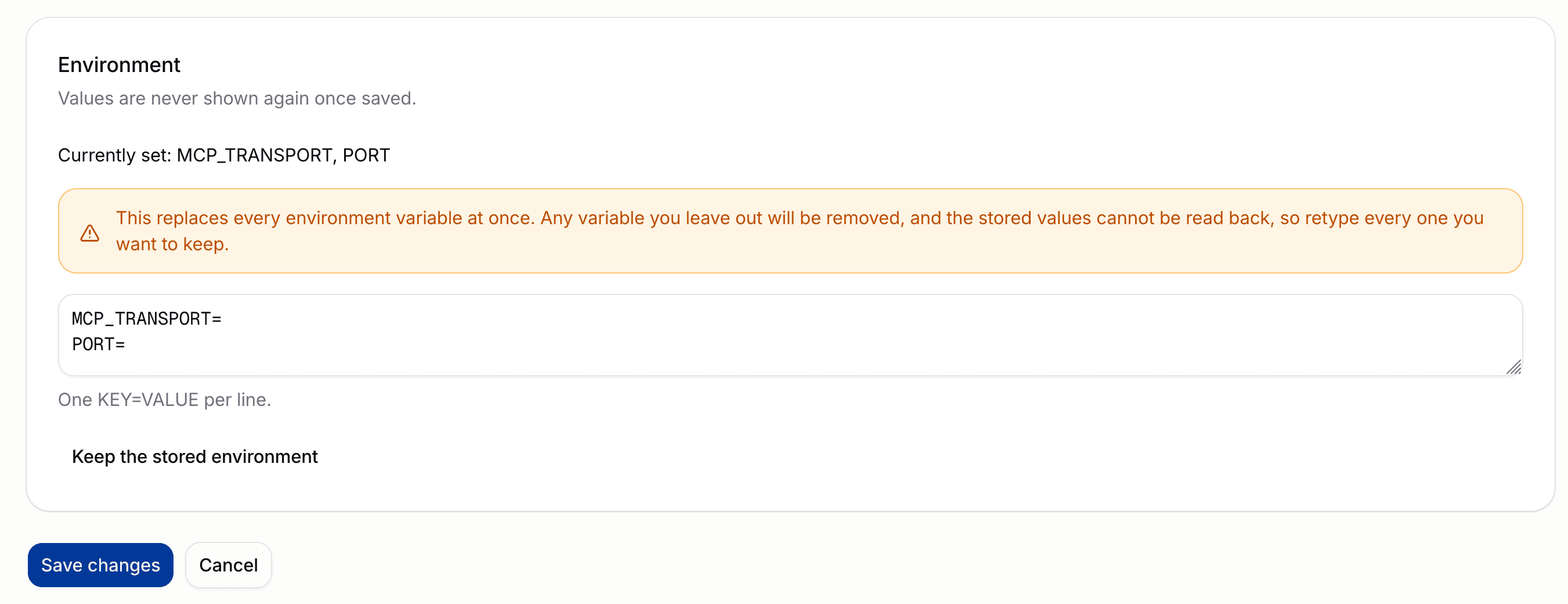
Values are write-only. They go into a Kubernetes Secret, and no endpoint returns them. A read reports names only, each marked as configured. The platform's own permissions include no read access to the Secret, so this is enforced rather than promised.
Because values are not readable, they are not recoverable. Record them wherever you keep other secrets.
If the values cannot be written to the cluster, the whole request fails with mcp_server_environment_not_stored and no server is created. This is the one part of a Managed Server that is not converged later, because the values exist nowhere else.
Security context
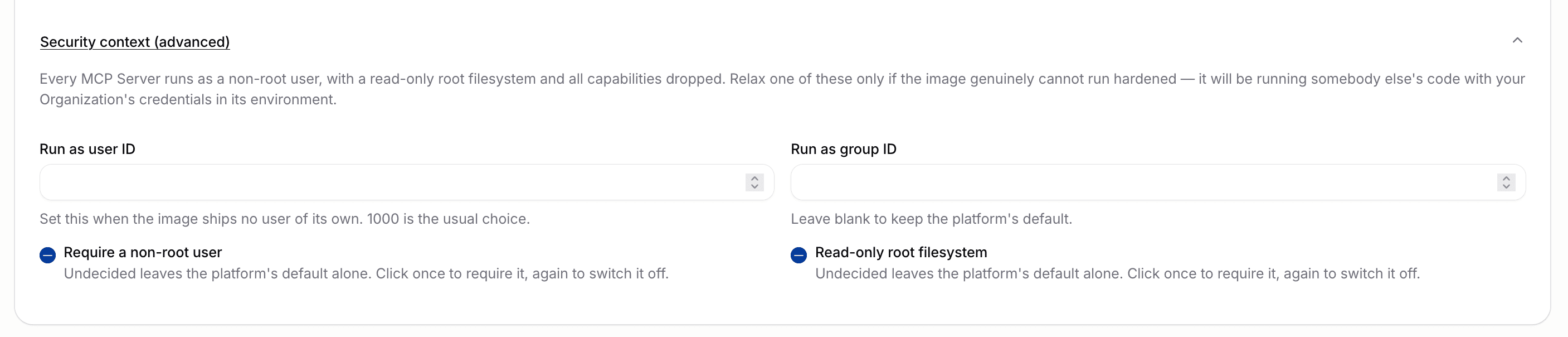
Every MCP Server container runs as a non-root user, with a read-only root filesystem and all capabilities dropped. Some images cannot survive that.
The Security context (advanced) section is the exception mechanism. It holds four settings.
| Setting | Effect |
|---|---|
| Run as user ID | Sets the numeric user the container runs as. Leave blank to keep the default. |
| Run as group ID | Sets the numeric group. Leave blank to keep the default. |
| Require a non-root user | Undecided keeps the default. Switch it off only for an image that must run as root. |
| Read-only root filesystem | Undecided keeps the default. Switch it off for an image that writes to its own filesystem. |
An undecided setting leaves the platform's decision alone. Change one only when the image genuinely cannot run hardened. The container runs somebody else's code with your organization's credentials in its environment.
Context7 needs Run as user ID set to 1000 because the image ships no user of its own.
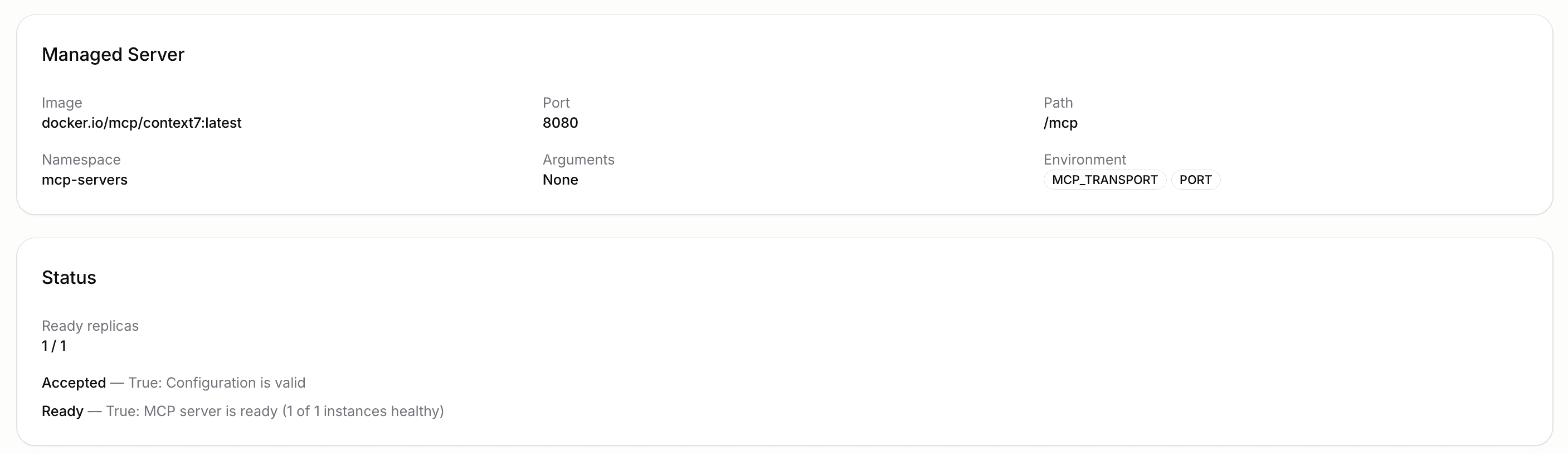
Wait for a Managed Server to become ready
Open the server. Its status is one of four values.
| Status | Meaning |
|---|---|
| Ready | The workload is up and completed an MCP handshake. |
| Not ready | The workload exists but is not serving. |
| Status unknown | A Managed Server the cluster has not reported on yet. Normal for a few seconds after creation. |
| Not reported | A Remote Server. It runs outside the platform and reports nothing. This is normal and permanent. |
The detail page refreshes an unready Managed Server on its own for a minute, then offers a Refresh status button.
Creating a server records your intent. It succeeds even when the cluster is busy or unreachable, and the workload converges on the record afterwards. Status stays empty until the cluster catches up.
If a Managed Server never becomes ready, check the four settings above. A container that starts healthily and never answers is almost always still in stdio mode, or listening on a different port.
Edit a server
Select Edit MCP Server on the detail page. Runtime and name are shown as fixed. Everything else is editable.
The edit form replaces what you send. Fields you clear are cleared on the record. Environment variables are the deliberate exception.
An untouched edit form sends no environment at all, and the stored environment is preserved. To change it, select Replace environment. That replaces every variable at once, so retype every one you want to keep. Values cannot be read back, so a variable you leave out is a variable you remove. Keep the stored environment abandons the replacement.
A server cannot change runtime. Editing a Managed Server as a Remote one, or the reverse, returns mcp_server_runtime_mismatch. To change runtime, delete the server and add a new one. The new server has a different identifier, so every member links it again and every Agent referencing it must be updated.
Delete a server
Select Delete on the detail page and confirm. Deleting removes the MCP Server and every User Credential linked to it. It cannot be undone. For a Managed Server, the workload is removed too.
Create a server with the API
The create form has a Create this with the API instead section that shows the exact request the form will send, built from what you have typed. Environment values are masked in that preview, so replace each placeholder before running it.
The equivalent request for a Remote Server:
export BSQAI_TOKEN=sk-bsq-v1-...

curl -X POST "https://api.<platform-domain>/v1/mcp/servers" \
  -H "Authorization: Bearer $BSQAI_TOKEN" \
  -H "Content-Type: application/json" \
  -d '{
    "runtime": "remote",
    "name": "linear",
    "display_name": "Linear",
    "address": "https://mcp.linear.app/mcp"
  }'
And for a Managed Server:
curl -X POST "https://api.<platform-domain>/v1/mcp/servers" \
  -H "Authorization: Bearer $BSQAI_TOKEN" \
  -H "Content-Type: application/json" \
  -d '{
    "runtime": "managed",
    "name": "context7",
    "display_name": "Context7",
    "image": "docker.io/mcp/context7:latest",
    "port": 8080,
    "path": "/mcp",
    "env": {"MCP_TRANSPORT": "http", "PORT": "8080"},
    "security": {"run_as_user": 1000}
  }'
Create an API key under Settings → API Keys in the Portal.