Link your credential to an MCP Server
Sign in to the upstream system with OAuth, or paste a token, so an MCP Server can act as you.
An MCP Server reaches its upstream system as the individual calling user. Before you can see or call a server's tools, you supply your own credential for it. This is called Linking, and every member does it for themselves.
A Platform Admin adding a server does not link it for anyone else. Sharing an Agent does not share access either. Nobody's credential is ever used on another person's request.
Two routes to the same result
| Route | You do this | Use it when |
|---|---|---|
| OAuth Linking | Sign in to the upstream system in a browser and approve access | The MCP Server supports OAuth. Most hosted services do |
| Paste a credential | Create a token in the upstream system and paste it | The server takes a personal access token or API key |
Both end in the same encrypted record, and nothing downstream can tell which route you took. The Portal offers both, and you can switch between them at any time by linking again.
Link a server
- Open MCP Servers in the Portal sidebar and select the server.
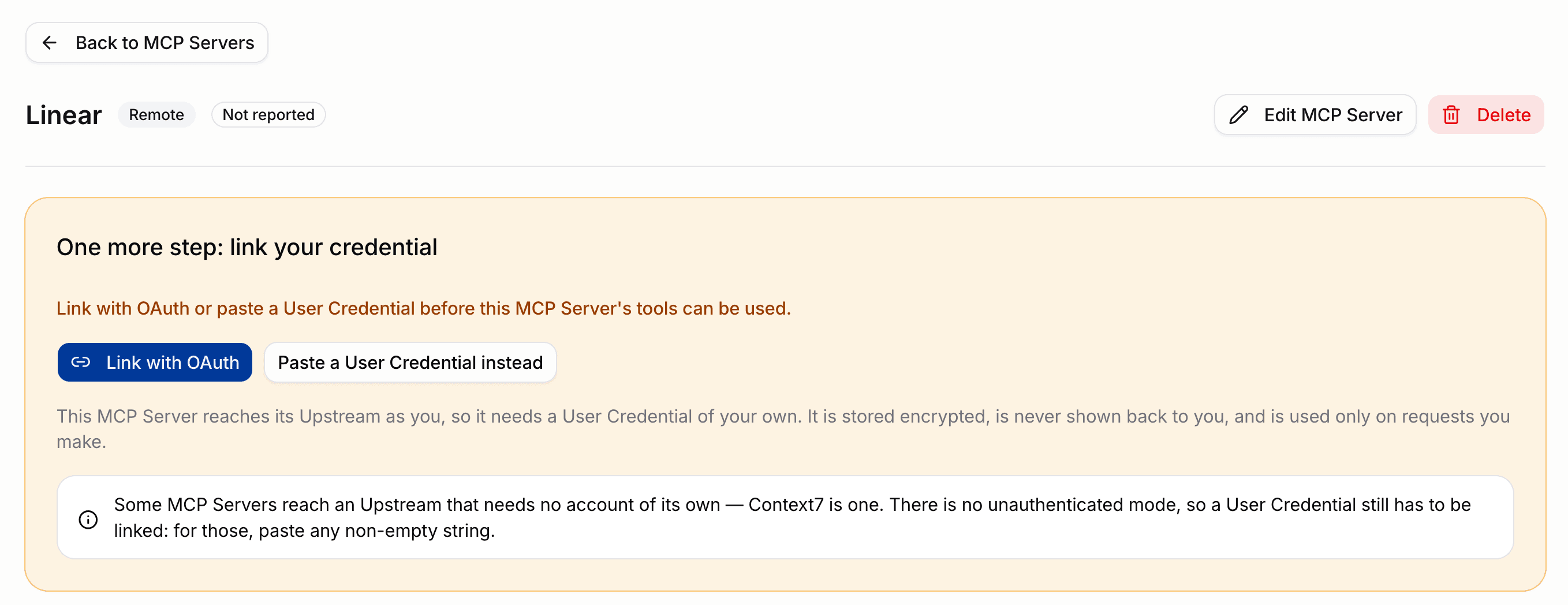
- Find the Your User Credential card.
An unlinked server shows both options.
With OAuth
- Select Link with OAuth. The Portal sends you to the upstream system's sign-in page.
- Sign in and approve access.
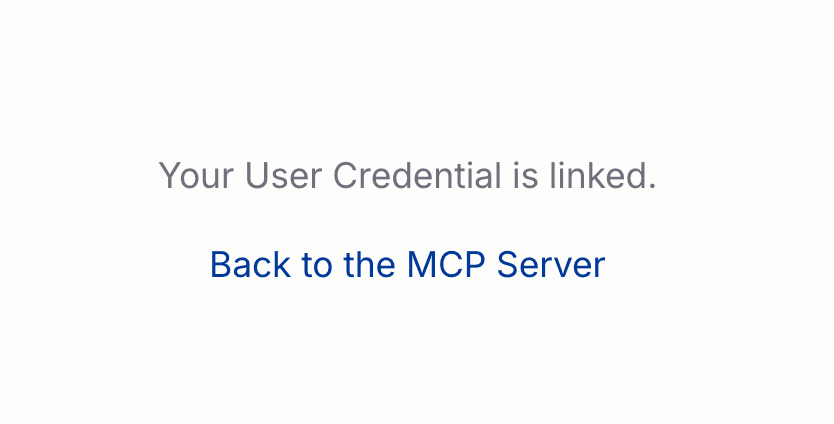
- The upstream system returns you to the Portal, which finishes the link and confirms it.
Behind the sign-in page, the platform discovers the upstream authorization server from the MCP Server itself and registers itself as a public client the first time anyone in your organization links that server. That registration belongs to the organization and the server, not to you, and carries no secret. The exchange is protected with PKCE.
The platform requests no scopes of its own. What you are granted is what the upstream system decides to grant, on the consent screen you see.
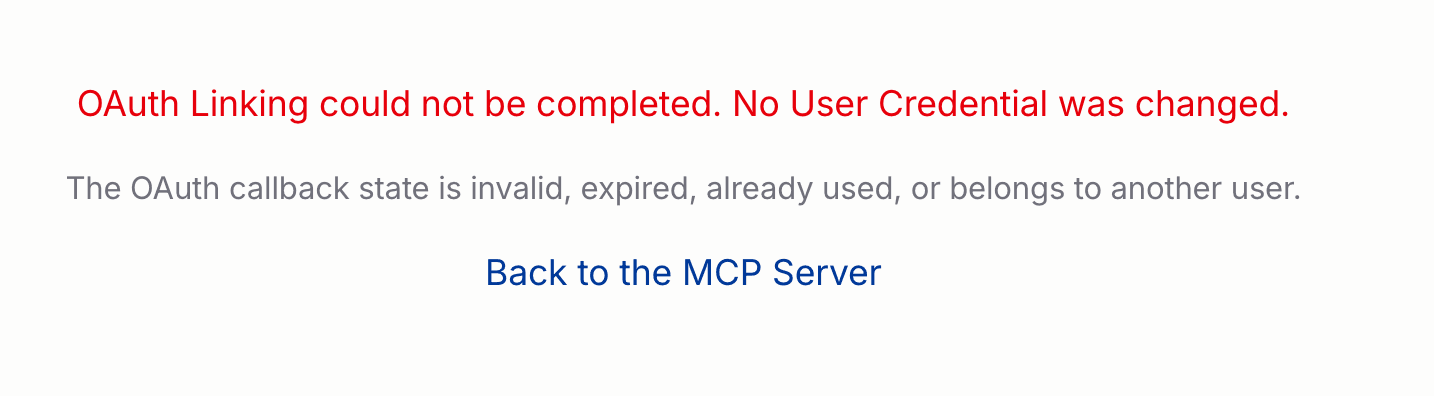
Each attempt is valid once and for ten minutes. If you leave the flow and come back, or the exchange fails, start again from the server. There is no retry, because the attempt is spent.
If you decline at the upstream system, the Portal says the linking was canceled and that nothing changed.
By pasting a credential
- Create the token in the upstream system. A GitHub personal access token and an Atlassian API token are typical examples.
- Select Paste a User Credential instead.
- Paste the value and select Link it.
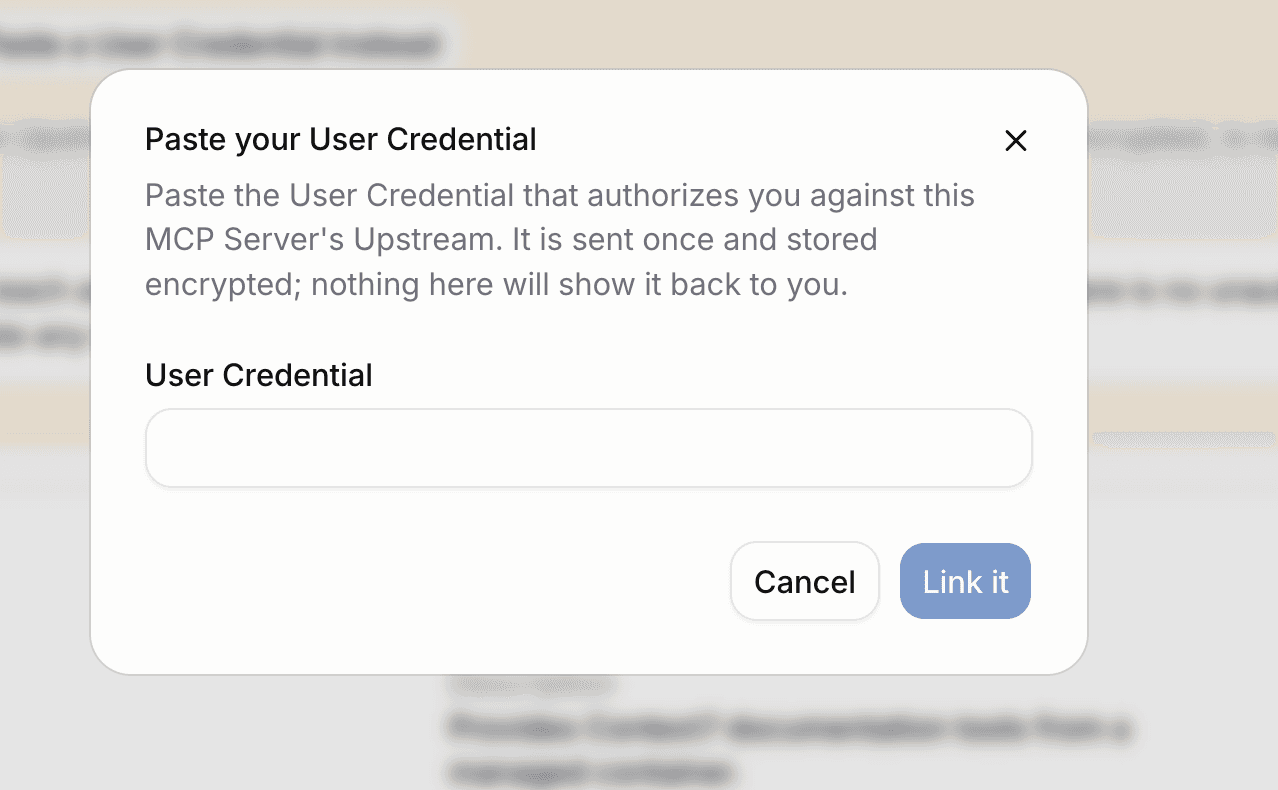
The field takes up to 4096 characters and rejects an empty or whitespace-only value. It is never prefilled and never shown back to you.
The value is not checked against the upstream system when you paste it. A wrong or expired token is reported the first time you call the server.
Servers that need no account
Some MCP Servers reach an upstream that needs no account of its own. Context7 is one.
There is still no unauthenticated mode. A credential has to be linked either way. For those servers, paste any non-empty string.
Check what you have linked
The server list has a Your User Credential column reading Linked or Not linked. The value is yours alone and says nothing about anyone else.
An unlinked row explains that the server's tools are hidden from you until you open it and link one.
The detail page distinguishes a credential that has been linked but not yet used from one already in use.
Replace or remove a credential
Linking again replaces what you have. The credential it replaces stops working at once. The Portal asks you to confirm.
Unlink removes your credential from that server. Your calls through the MCP Gateway fail until you link it again. Unlinking affects only you.
Deleting an MCP Server removes every User Credential linked to it.
What happens to the credential
Your credential is encrypted before it is stored, with a key held by the deployment and a separate derivation per user and per server. No endpoint returns it, in any form, to you or to anyone else.
The MCP Gateway decrypts it only while forwarding a request you made, and supplies it to the MCP Server in place of your platform credential. Your platform token or API key never reaches an MCP Server or an upstream system.
An OAuth credential is renewed on use. When the access token is close to expiry, the platform refreshes it just before the call, so a link keeps working without you doing anything. A pasted token has no expiry and is never refreshed.
When a call fails
| Message | Cause | What to do |
|---|---|---|
| No credential is linked for this MCP Server | You have not linked this server | Link it |
| The credential linked for this MCP Server was refused | The upstream system rejected it. It was revoked, or it never had access | Link it again |
| The credential linked for this MCP Server has expired | An OAuth link the platform could no longer renew | Link it again with OAuth |
| This MCP Server does not use OAuth | The server presented no OAuth challenge | Paste a credential instead |
| OAuth Linking is not configured for this deployment | The deployment has not published an OAuth return address | Paste a credential instead, or ask a Platform Admin to configure it |
A refused credential and an expired one are different problems. A refusal means the upstream system said no to the value you linked. An expiry means the link is dead and only signing in again revives it.
Using a linked server in chat
Only the servers you have linked contribute tools to a conversation. The rest are absent, whether you turned them on yourself or an Agent requires them. Chat tells you when an Agent needs a server you have not linked and offers to link it.
See Use an MCP Server in chat for turning connectors on and reading a tool call.
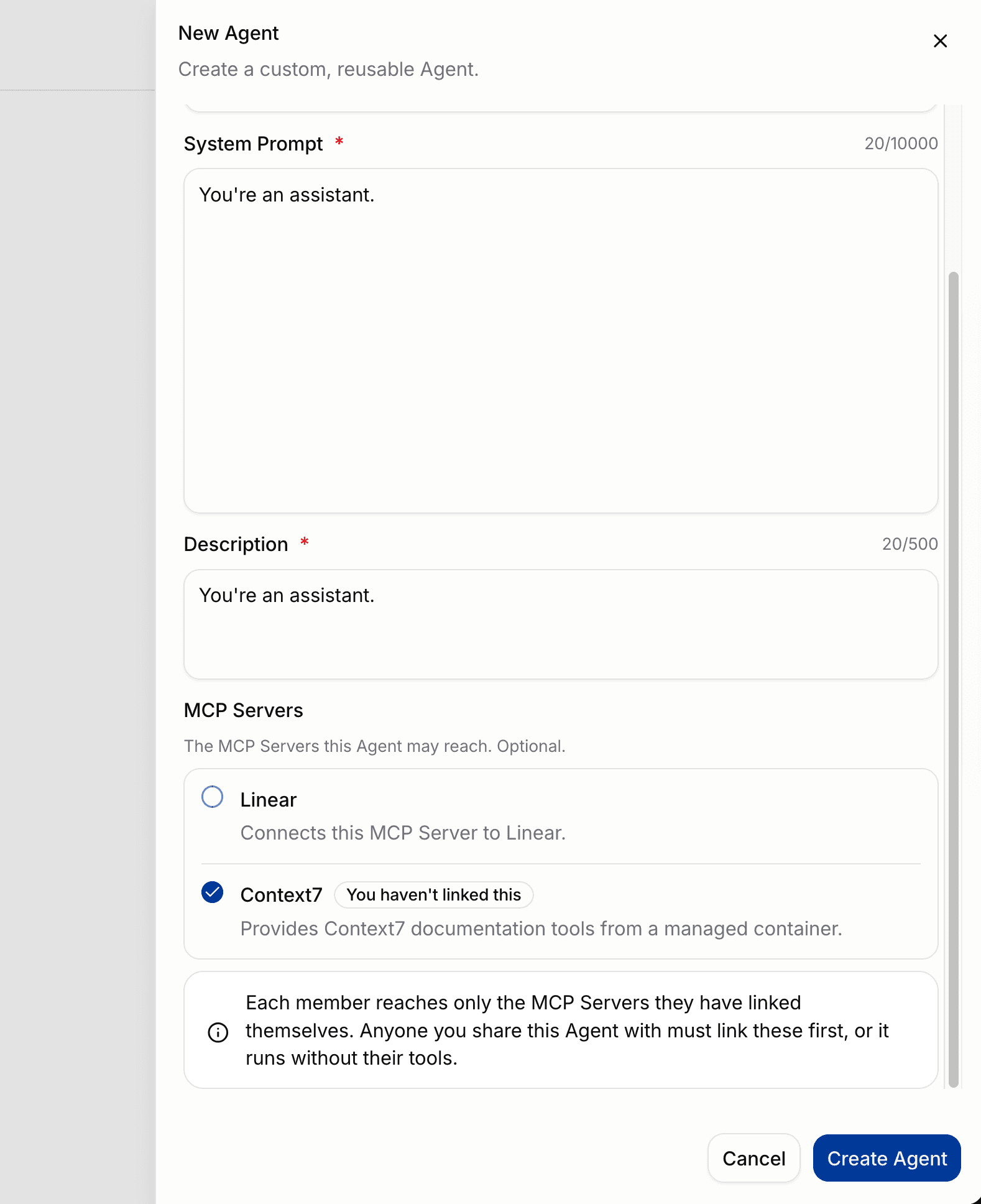
The Agent editor marks a server the editor has not linked and reminds whoever builds the Agent that every member has to link the servers themselves.
Link with the API
export BSQAI_TOKEN=sk-bsq-v1-...
export SERVER_ID="<server-id>"

curl -X PUT "https://api.<platform-domain>/v1/mcp/servers/$SERVER_ID/credential" \
  -H "Authorization: Bearer $BSQAI_TOKEN" \
  -H "Content-Type: application/json" \
  -d '{"credential": "<your upstream token>"}'
A successful link answers 204 with no body. Remove it with the same path and DELETE.
Read your own link state from GET /v1/mcp/servers/{server_id}, which reports linked and credential_last_used_at.