Restrict which tools an MCP Server offers
Set the tool allowlist so the organization can call only the tools a Platform Admin permits.
The tool allowlist is the subset of an MCP Server's tools the organization may invoke. Only a Platform Admin can set it. It applies to Managed and Remote servers alike, and to every caller, whether an Agent in chat or an external MCP client.
Before you start
Reading the tools a server advertises opens a real MCP session with it, as you, using your own linked credential. Link one first. See Link your credential to an MCP Server.
A Managed Server must also be ready. A Remote Server must answer.
Set the allowlist
- Open the server from MCP Servers in the Portal sidebar.
- Select the Tool allowlist tab. The Portal asks the server which tools it offers.
- Select the tools the organization may call.
- Select Save allowlist.
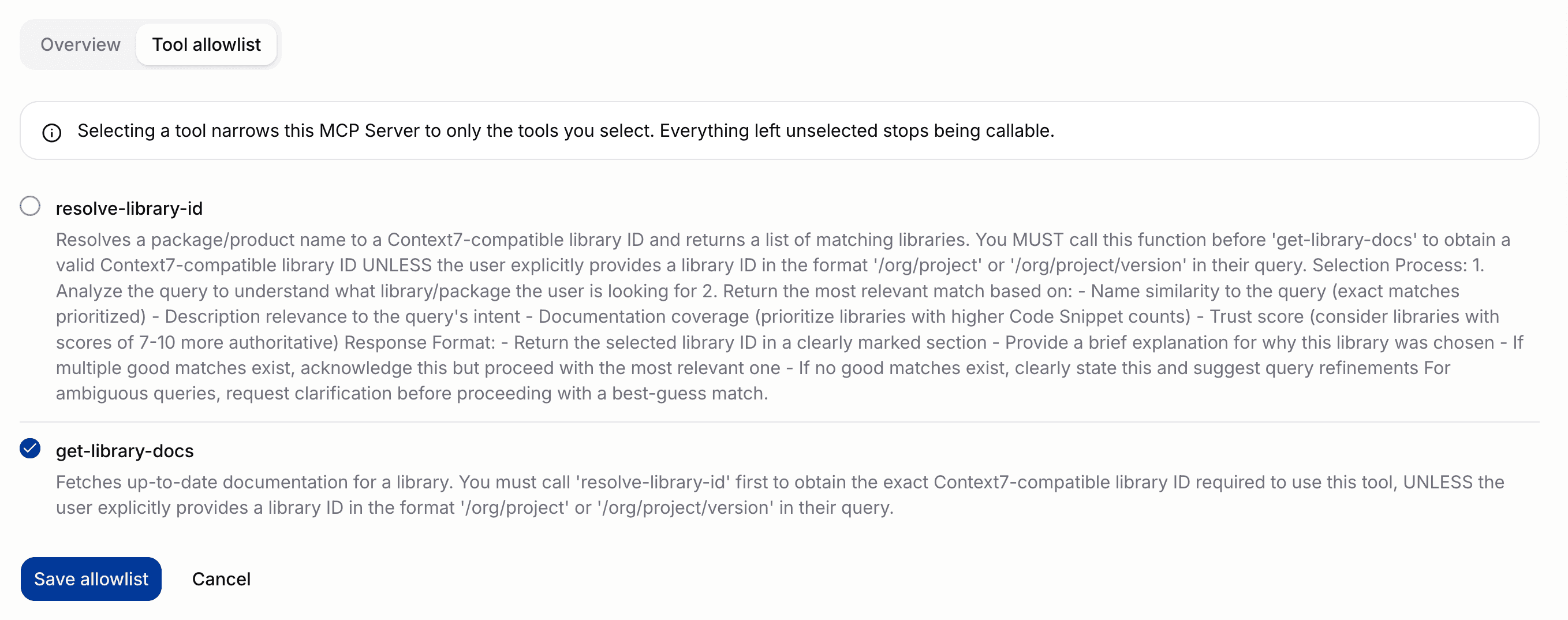
The listing is deliberately unfiltered. Tools outside the current allowlist are shown too, because those are the ones you might permit next.
An allowlist entry that no tool matches is shown as Not offered. That is usually a typo, and a name nothing matches permits nothing.
An empty allowlist permits everything
Selecting no tool permits every tool the server offers. There is no setting that permits none. To stop an organization calling a server at all, delete the server.
Making the first explicit selection is therefore a narrowing. The Portal warns that every unselected tool stops being callable.
What a blocked call looks like
The Gateway reads the allowlist from the database on every request, so tightening one takes effect at once and needs no redeploy.
A tool outside the list is removed from the server's tool listing before the listing reaches the client. A client that names the tool directly is refused before the request reaches the MCP Server, with Unknown tool: <name>.
That is the same answer a genuinely unknown tool gets. Withholding the name is intentional. A refusal that revealed the tool exists would tell a caller what an administrator chose to hide.
What members see
A member opening the Tool allowlist tab sees the saved tool names as read-only badges. They do not trigger a listing and cannot change the selection. When the allowlist is empty, the tab says every advertised tool is permitted.
When the listing fails
| Message | Cause | What to do |
|---|---|---|
| No credential is linked | You have no User Credential for this server | Link one, then try again |
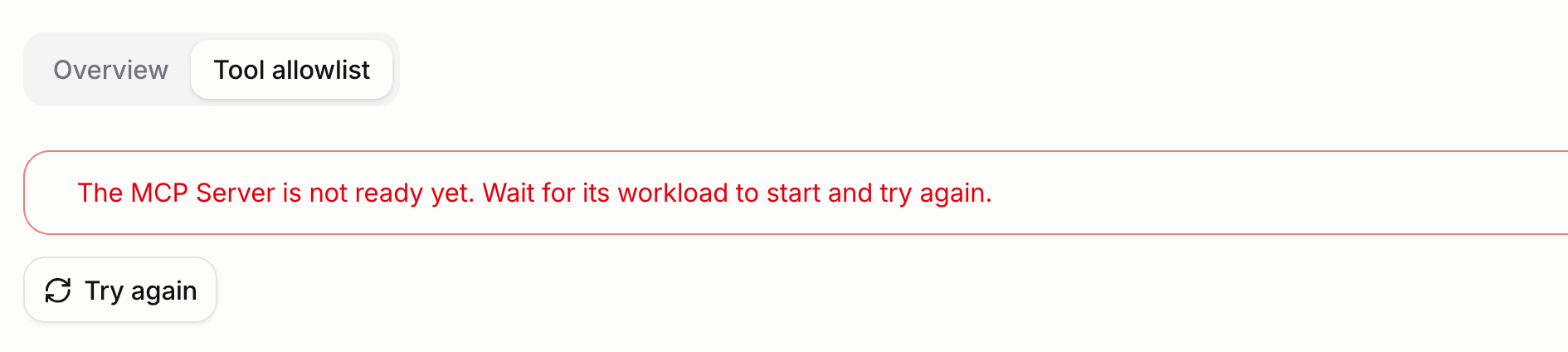
| The MCP Server is not ready yet | The Managed workload has not started | Wait for Ready, then try again |
| The MCP Server could not be reached | The workload or remote endpoint did not answer, or did not complete an MCP handshake | Check the server, then try again |
A not-ready error offers only Try again. It does not suggest linking a credential, because the credential is not the problem.
Read the allowlist with the API
export BSQAI_TOKEN=sk-bsq-v1-...
export SERVER_ID="<server-id>"

curl "https://api.<platform-domain>/v1/mcp/servers/$SERVER_ID/available-tools" \
  -H "Authorization: Bearer $BSQAI_TOKEN"
{
"tools": [
{
"name": "resolve-library-id",
"description": "Resolves a package name to a library identifier.",
"in_allowlist": true
},
{
"name": "get-library-docs",
"description": "Fetches documentation for a library.",
"in_allowlist": false
}
],
"count": 2
}in_allowlist reports literal membership of the stored list. When the allowlist is empty every tool is permitted and in_allowlist is false for all of them, so read the flag alongside the server's tool_allowlist rather than instead of it.
Write the allowlist by sending tool_allowlist on the server update request. See MCP reference.