Build
Ask an agent to run code, create files, and build a web app you can preview, in the Build mode of OmniChat.
Build is a chat mode of OmniChat in which the agent has its own sandbox: an isolated computing environment that belongs to the chat. In the sandbox, the agent runs commands, writes and edits files, and can start a web app that you open beside the conversation. Use Build when you want a result you can download, such as a document, a spreadsheet, an image, a script, or a small web app, rather than only a text answer.
Before you begin
Build is available only where the platform team has enabled the agent sandbox for your deployment. Where it is not enabled, the new-chat screen shows no Chat | Build switch. Platform engineers enable it with Enable and operate agent code sandboxes. A platform administrator can also turn the sandbox off for every tenant, and your organization's administrator for your organization. Build is then unavailable in the switch, and pointing at it shows who turned the sandbox off. Earlier Build chats open read-only with a notice that names who turned it off. You can still download the files they produced.
You need the same access as for an ordinary chat, including a chat model you can use that calls tools. Live app previews need additional setup, so they can be unavailable even where Build is available.
Start a Build chat
- Open OmniChat and select New chat.
- At the top of the new-chat screen, select Build in the Chat | Build switch. Chat returns to an ordinary conversation.
- Choose a model, describe what you want to build, and send the message.
An empty Build chat shows Ready when you are and, below the message box, four starters: Make a presentation, Build a website, Analyze data, and Write a document. A starter puts the opening words of a request in the message box for you to complete. It sends nothing.
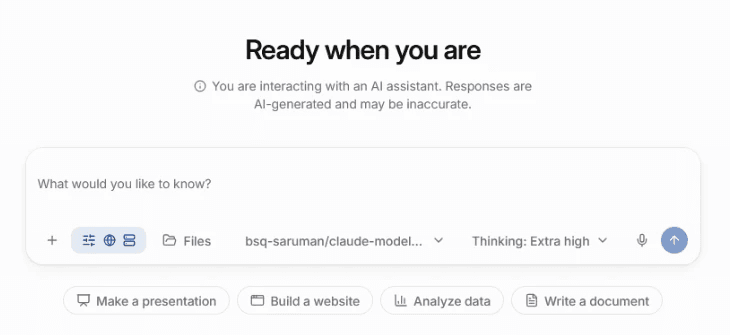
The Build composer has these controls:
- the
+menu, with Add files and Skills - a Tools button with a Web search switch, on by default, and a switch for each Connector; every Connector you can reach starts switched on, and an Agent's required Connectors stay on
- a Files picker for scoping the request to library files and folders
- a
/picker for skills in Yours; active skills appear as chips above the composer, each with Stop using - the model selector, the reasoning effort control, shown as Thinking: and the level, and a microphone for dictation
A reopened Build chat keeps the model or Agent, web search, Connectors, file selection, and stopped skills it was saved with. Web search and Connector tools run in the platform, not in the sandbox. Sources from file search are not shown in Build chats; web search sources are.
Build chats appear in the sidebar's chat history with a sparkle icon. Selecting one reopens it in Build. New chat, Search chats, and the history stay in the sidebar.
The workspace shows the conversation on one side and the results on the other. Collapse chat and Expand chat, the panel icon at the left of the results toolbar, hide and show the conversation, and you can drag the divider to resize the panels. Close preview, the X at the right of the toolbar, closes the results panel.
Rate an answer with Good answer or Bad answer below it, as in an ordinary chat; see Rate an answer.
How the agent works
The agent works in a sandbox that belongs to this chat. Each Build chat has its own sandbox, and only you can open its files and app.
- The agent runs shell commands and reads, writes and edits files in the sandbox.
- Its actions appear in the conversation. Consecutive actions are grouped into one collapsible entry, such as 3 actions. While the agent works, the entry names its latest action, and an entry with a failed action says how many failed. A single action shows on its own line, such as Ran bash. Open an entry to see each action and its result.
- By default, a single command that runs longer than 5 minutes is stopped. Near the end of a turn, a command gets only the time that is left.
- A headless Chromium browser, Playwright for Python and Node.js, and fonts are preinstalled. The agent uses them to take screenshots of the pages it builds and check how they look, without installing anything.
- Depending on the deployment, the sandbox can reach public websites over HTTPS, for example to install software packages, or has no internet access. It cannot reach private networks or the platform's internal services.
When a turn reaches a limit
A turn is the agent's work on one of your messages, until it answers. The agent works in steps. In each step, the model answers or uses tools, such as a command in the sandbox. By default, a Build turn can take up to 100 steps and about 8 minutes of working time. Your administrator can change these limits for your deployment.
When a turn nears a limit, the agent stops using tools and writes a checkpoint. Done lists what is finished, with the paths of the files it wrote, and Next lists the remaining steps. A notice below the checkpoint says that the turn paused near its limit and offers Continue. Select it, or send "continue" yourself, and the agent picks up from the checkpoint in a new turn.
If a turn ends without an answer or a checkpoint, the chat keeps everything the turn did so far. A message names why the turn ended, for example the step or time limit, a failure of the model, or Stop. You can choose:
- Continue picks up where the turn ended, from the saved work.
- Try again starts the turn over. The steps of the ended turn are removed from the chat, and the files it wrote stay in the sandbox and in the file tree.
The model's safety guardrail can block your message or the answer to it, or the model can refuse to answer. After a block or a refusal, the chat offers neither Continue nor Try again. Both would send the blocked message again. Start a new chat opens a new Build chat. You cannot edit messages in Build.
After Stop, the chat shows Stopped, saving… until the work of the turn is saved. For every cause and action, see When a response ends early.
Use skills
A skill active in a Build chat brings its supporting files into the sandbox, under /workspace/.skills/<name>/, and the agent can run its scripts there. Adding a shared skill to Yours therefore trusts its author's scripts to run in your sandbox. The skill's files are not saved with the chat or listed among its files. See Scripts in the sandbox.
Attach files
Attach files from the composer, as in an ordinary chat. Files you attach are uploaded to your Files library. The agent reads their text, and copies a file into the sandbox when it needs to process the file with code or use it in an app.
Build accepts the same file types as chat and the Files library. Every attachment, images included, is uploaded to the library so the agent can copy it into the sandbox. Images are also sent to the model when the selected model supports image input.
Files the agent creates
You see the files that the agent delivers. Its working files, such as helper scripts, installed packages and logs, stay hidden. A web app gets its own folder.
After each response, Files created below the reply shows a card for each document the agent created or changed, and one card per web app with its folder name and file count. Select a document card to preview the file, or an app card to open the app.
The results panel shows the delivered files:
- Preview shows the documents the agent produced, such as reports, spreadsheets and images.
- When the agent built an app, icon buttons at the top of the panel switch between Coding, with a file tree and the selected file, and App, with the running app. When the chat also produced documents, Preview appears alongside them. Point at an icon to see its name.
The preview shows images, PDF documents, text, and code. Other file types show "No preview available for this file type". Download a single file, or all delivered files as one archive with Download as ZIP. The archive cannot exceed the tenant's sandbox workspace limit, 1024 MB by default.
A file larger than the tenant's sandbox file limit, 100 MB by default, is not saved and shows as deleted. The list below a reply can miss a change that keeps a file's size and timestamp, and files that a background process writes after the response. The file tree shows the files as they are.
Preview a web app
Where live previews are available, the agent can start the web app it built. The App tab then shows the app running beside the conversation. The app runs on its own web address, separate from the Portal, and never receives your Portal sign-in.
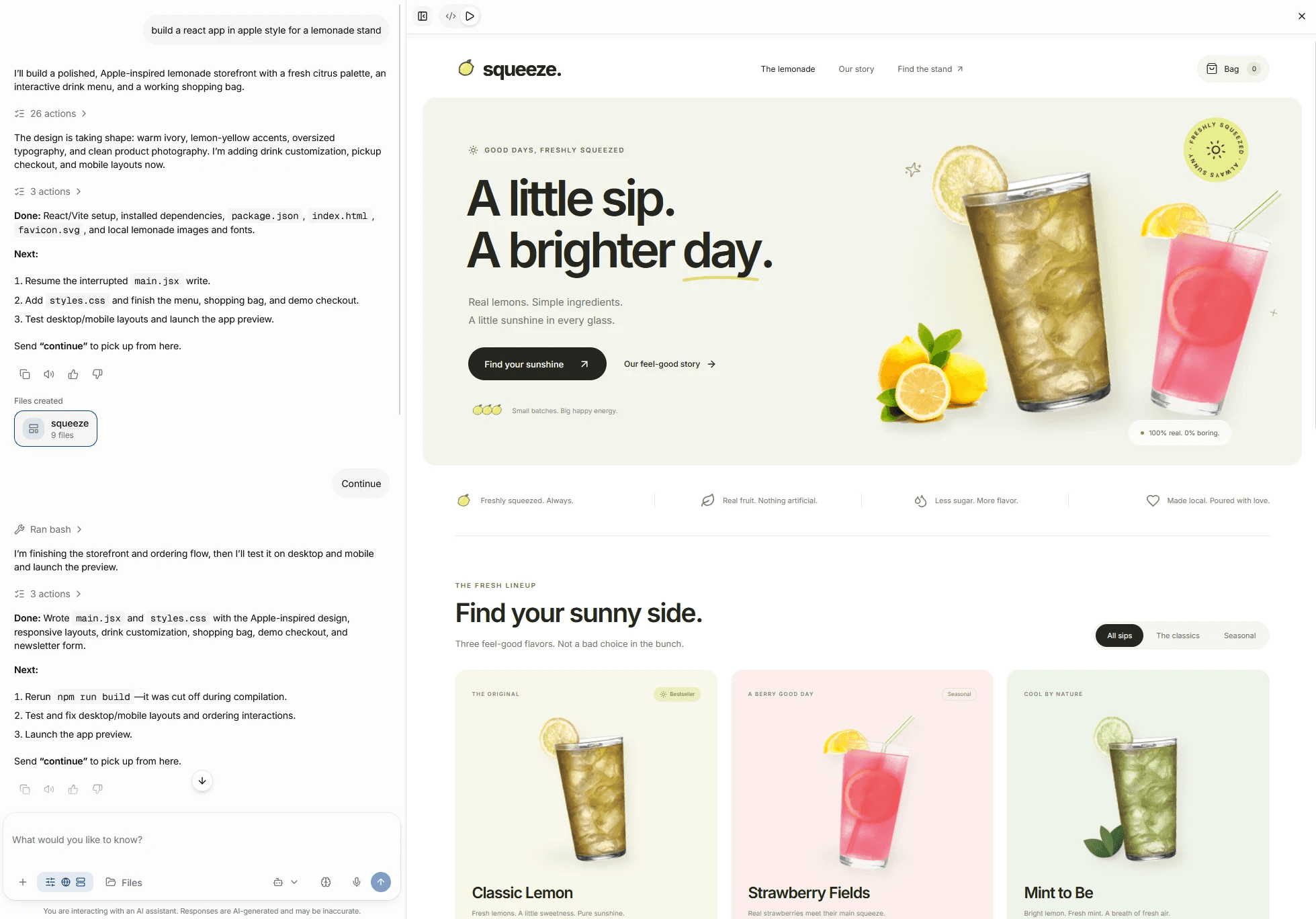
The App tab can show these states:
| State | Meaning |
|---|---|
| No live app yet | The agent has not started an app. Ask it to start one. |
| app is not running | The app you selected is not running. Ask the agent to start it. |
| Starting the live app… | The app is loading. |
| Couldn't load the live app | The preview did not load. |
| App stopped | The sandbox was shut down after inactivity. Ask the agent to start the app again. |
| This preview session has expired | Select Reload preview to open a new preview session. |
| The app is no longer running | Select Restore app preview to run the app again from your saved files. |
A preview session lasts 15 minutes by default. Where previews are not available, the agent cannot start an app preview. You can still download the app's files.
When the sandbox stops
By default, the sandbox stops after 15 minutes without activity, and at the latest 1 hour after it started. A tenant administrator can change both times. Your files are saved before the sandbox stops.
Your next message starts a new sandbox with the saved files. Packages that the agent installed are not saved, so it may install them again. The files of active skills are copied into the new sandbox again, after a fresh check that you can still read each skill.
Delete a Build chat
Delete a Build chat from its action menu in the sidebar. Deleting it also deletes its sandbox, the files saved for it, and its app preview. Download the files you want to keep first.